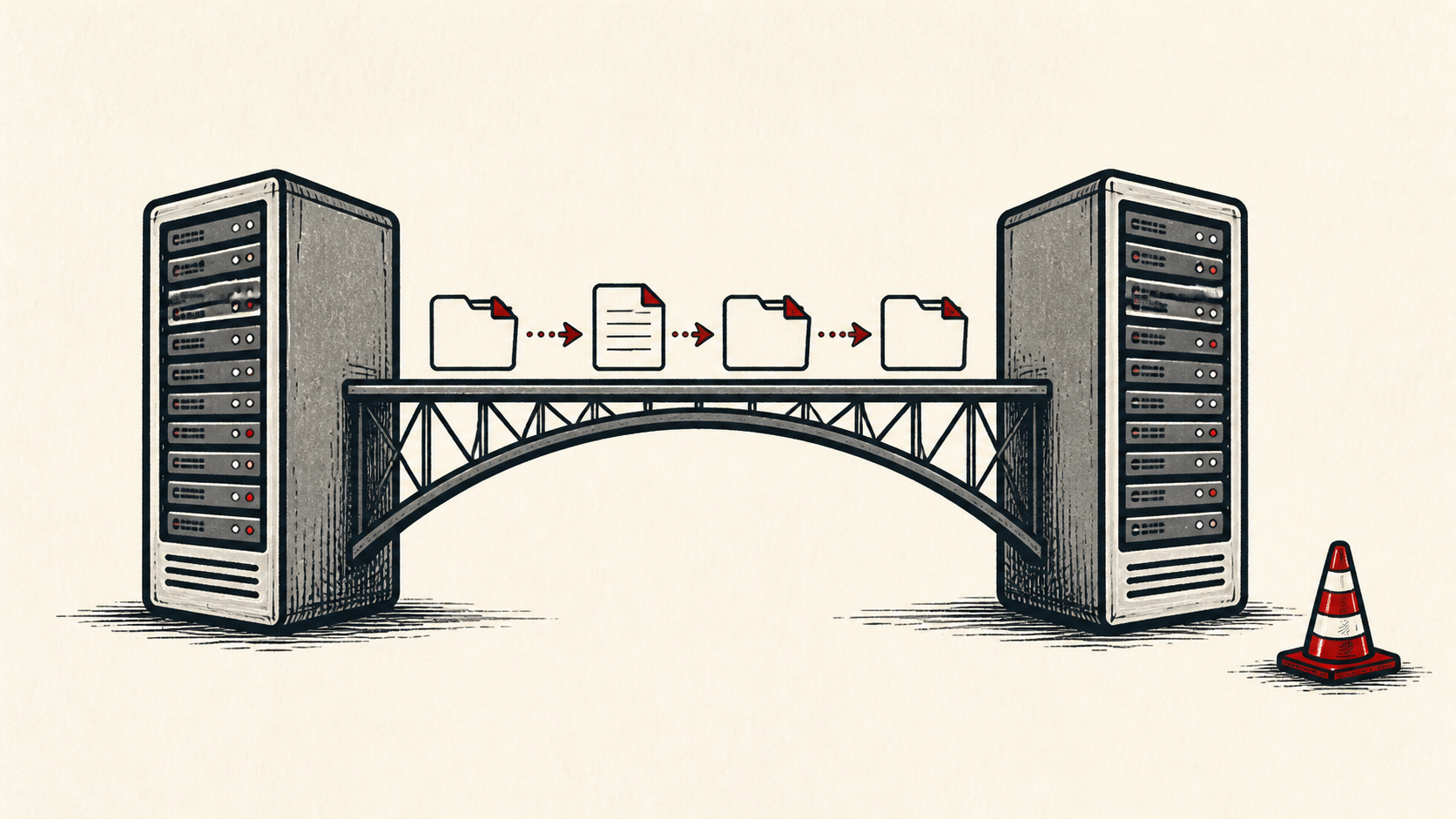
Domain Transfer Checklist: Move a Domain Without Losing Email
Domain transfer checklist: copy DNS records first, unlock the domain, get the EPP code, and keep email working while the move completes.
By Matthew Zhao · Editor, Hosted EZ
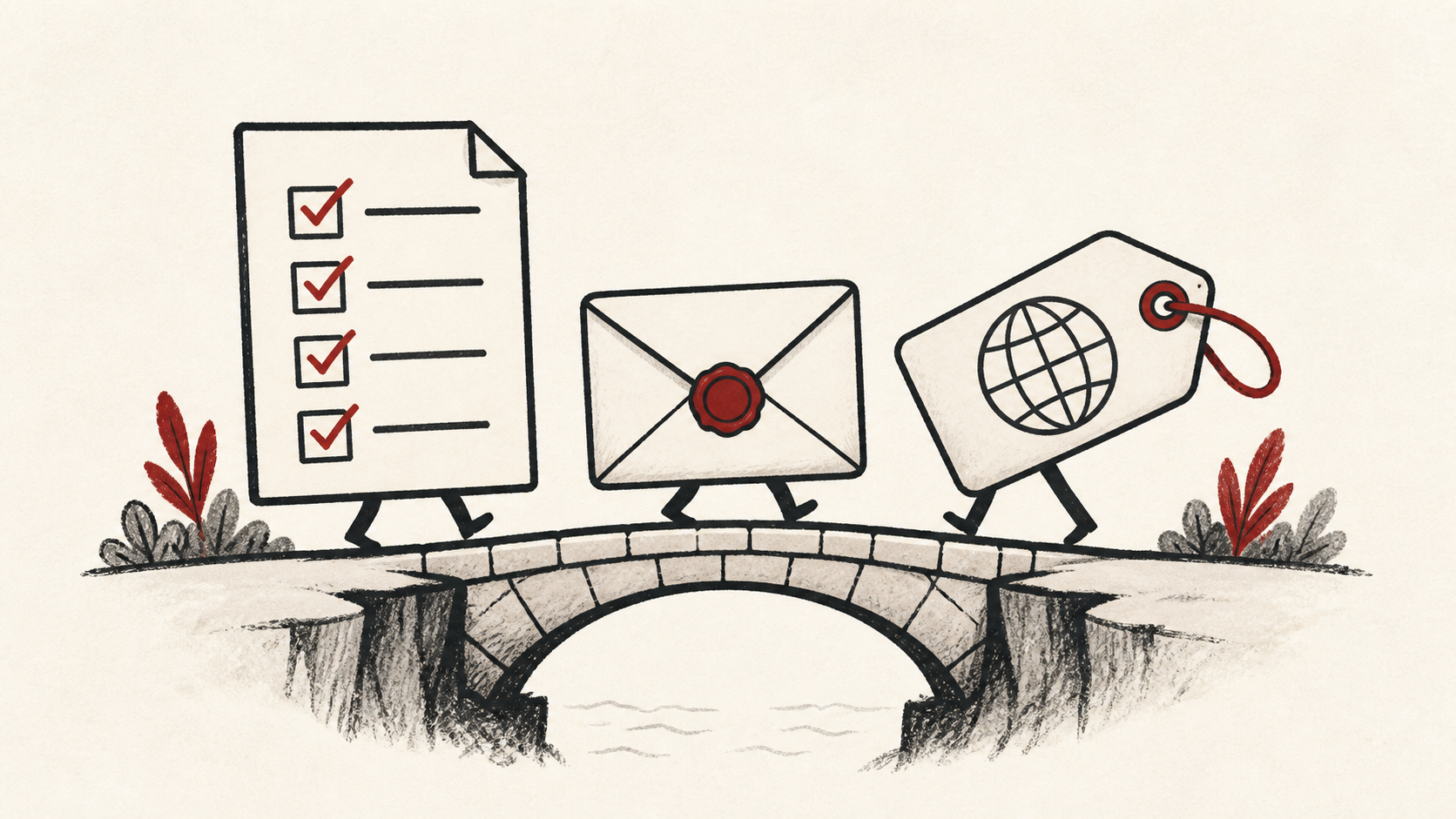
A domain transfer moves your domain from one registrar to another, and the step people skip is copying everything down before they start. The transfer itself is a slow handshake between registrars; the outages come from DNS and email settings that nobody wrote down. This checklist walks through the preparation, the auth-code step, and the checks that keep mail flowing.
This guide focuses on the steps a small-site owner can do safely. It also points out where the old registrar, the new registrar, or your host needs to take over. Read how to choose a web host if hosting is moving too, and our guide to migrating without downtime before changing live infrastructure.
Run the domain transfer checklist before you unlock anything
Keep the registrar login, DNS provider login, and hosting login straight. They may be the same company, but they are different jobs, and a transfer touches all three. Confusing them is how a small move becomes a long afternoon.
Make a short note with account names, the domain, current nameservers, and the last known working time. Confirm the admin email on the registration is one you can read; the approval notices go there. Do not put passwords or recovery codes in the note.
Copy every DNS record before the move
Record the current values before anything changes: A records, CNAME, MX, TXT, and the nameservers themselves. DNS entries are short, but a single missing dot or a lost MX record can direct visitors and mail somewhere else after the transfer. Export the zone if the panel offers it.
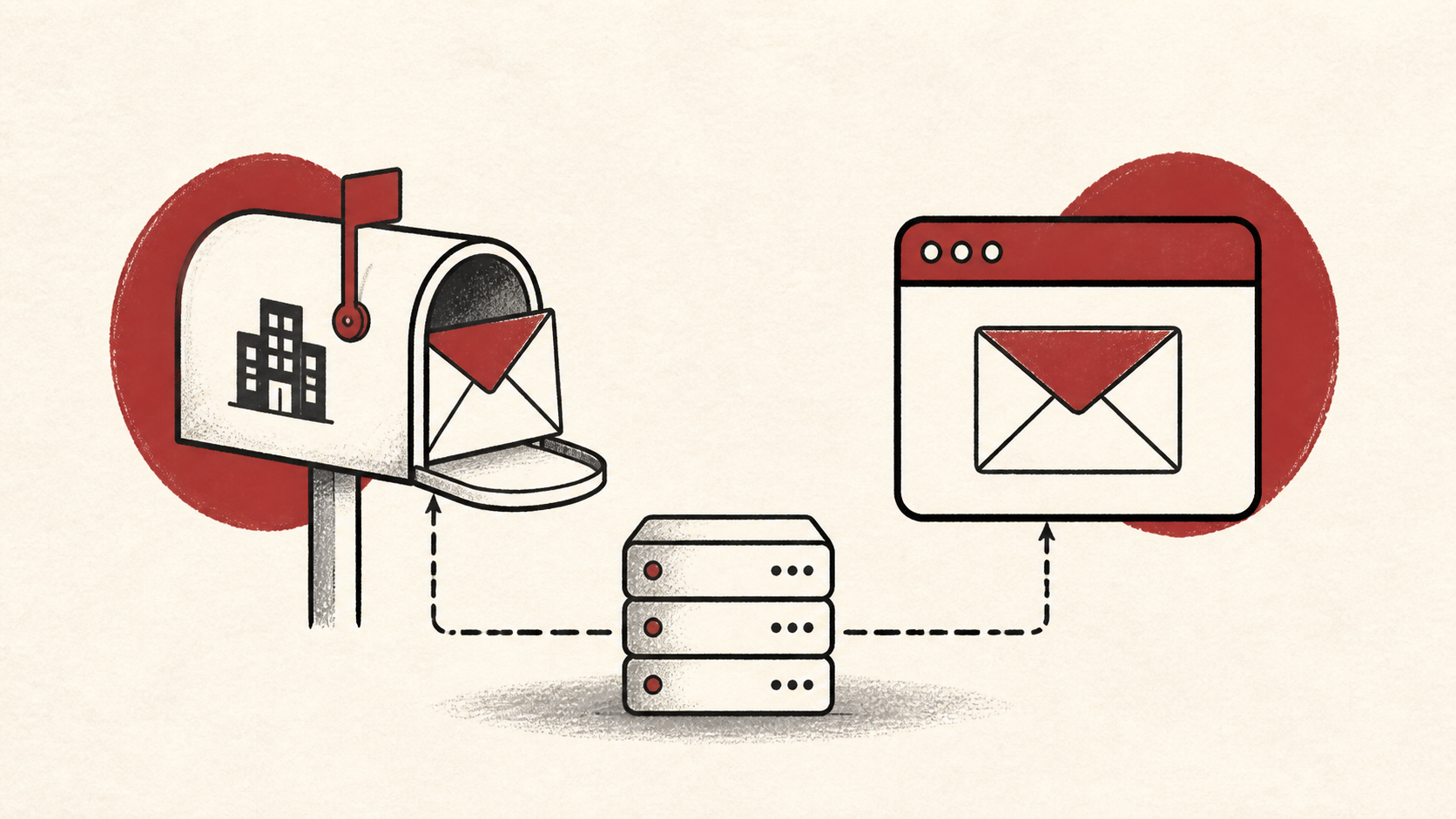
If the old registrar also runs your DNS or email, decide where those will live afterward before you start. That decision, made late, is the classic cause of dead mail.
Get the EPP code and watch the approval
Unlock the domain, request the EPP code (your registrar may call it an auth code or transfer key), and start the transfer from the new registrar, one step at a time. Approve the confirmation email promptly; transfers can otherwise sit for days. Registry rules also block transfers for 60 days after a registration or a previous transfer, so plan around that window.
When it completes, confirm with an independent lookup rather than the dashboard: check the nameservers, load the site from a second connection, and send a test email from an outside account. If you want the safe pattern spelled out, see how to transfer a domain without downtime.
When to stop and ask for help
Stop when the next action could change production mail or lock you out of an account. A transfer that stalls usually needs the current registrar, since they can see the hold; send them the domain, time in UTC, and the exact status message. Do not paste the auth code into a ticket unless they ask through a secure channel.
ICANN's DNS overview has useful background on how domains and DNS fit together: ICANN's DNS overview. Use it to understand the terms, then return to the small, reversible next step.
A sensible maintenance habit
Put the final configuration in a short maintenance note: new registrar, nameservers, where DNS and email now live, and the renewal date. Domain problems repeat because nobody remembers which account owns what. A dated note turns the next renewal or move into a lookup instead of an investigation.
Keep the change auditable
Use a short before-and-after record. Write the values you found, the exact time each step happened, and the result of the test. If a change has a delay, such as a DNS TTL or the registry's processing window, write the time you expect it to complete. This record is useful even when everything works; a few months later, it tells you why a setting has an unusual value.
Do not confuse an account dashboard with evidence from the live internet. A dashboard can say the domain transfer completed. Visitors still need to reach the site, and mail still needs to arrive. Test from outside the account, and use a second connection if a cached answer could mislead you.
If you hand the task to someone else, give them the record rather than a conclusion. "Email broke during the transfer" is hard to investigate. "MX records were not recreated at the new DNS host after this time" gives the next person a useful starting point.
One last check
Before you call the move finished, use the ordinary paths: load the site, send and receive a test email, and check that the domain shows the new registrar and the renewal date you expect. If a result is different, note the difference and keep troubleshooting from that point. A quiet confirmation now is much easier than discovering dead mail a week later.
Leave a useful handoff
Save the final test result with the date and accounts involved. If someone else needs to revisit the transfer, they should be able to see what moved where without reconstructing the whole week from confirmation emails.
Bottom line
A domain transfer stays boring when the checklist runs in order: copy DNS, confirm the admin email, unlock, EPP code, approve, verify. Keep email as the thing you test at every step, and give the registry window the days it needs.
Frequently asked questions
Should I transfer the domain and change DNS at the same time?
No. Change one thing at a time and keep the previous setup reachable until you know the transfer is stable.
What should I give support if a domain transfer stalls?
Give the domain, UTC time, the exact status message, and steps already tried. That is usually enough for support to find the relevant logs.
Should I back up DNS and email settings before a domain transfer?
Yes. Export or copy the full zone and note where mail is hosted before any step that affects DNS, email, or the registration.
About the author
Matthew Zhao
Matthew has spent his career running production server fleets — tens of thousands of machines' worth. He writes about hosting the way he wishes someone had explained it to him: plainly.
About Hosted EZ →Get the next guide in your inbox
One email when we publish something worth your time. No spam, unsubscribe whenever.