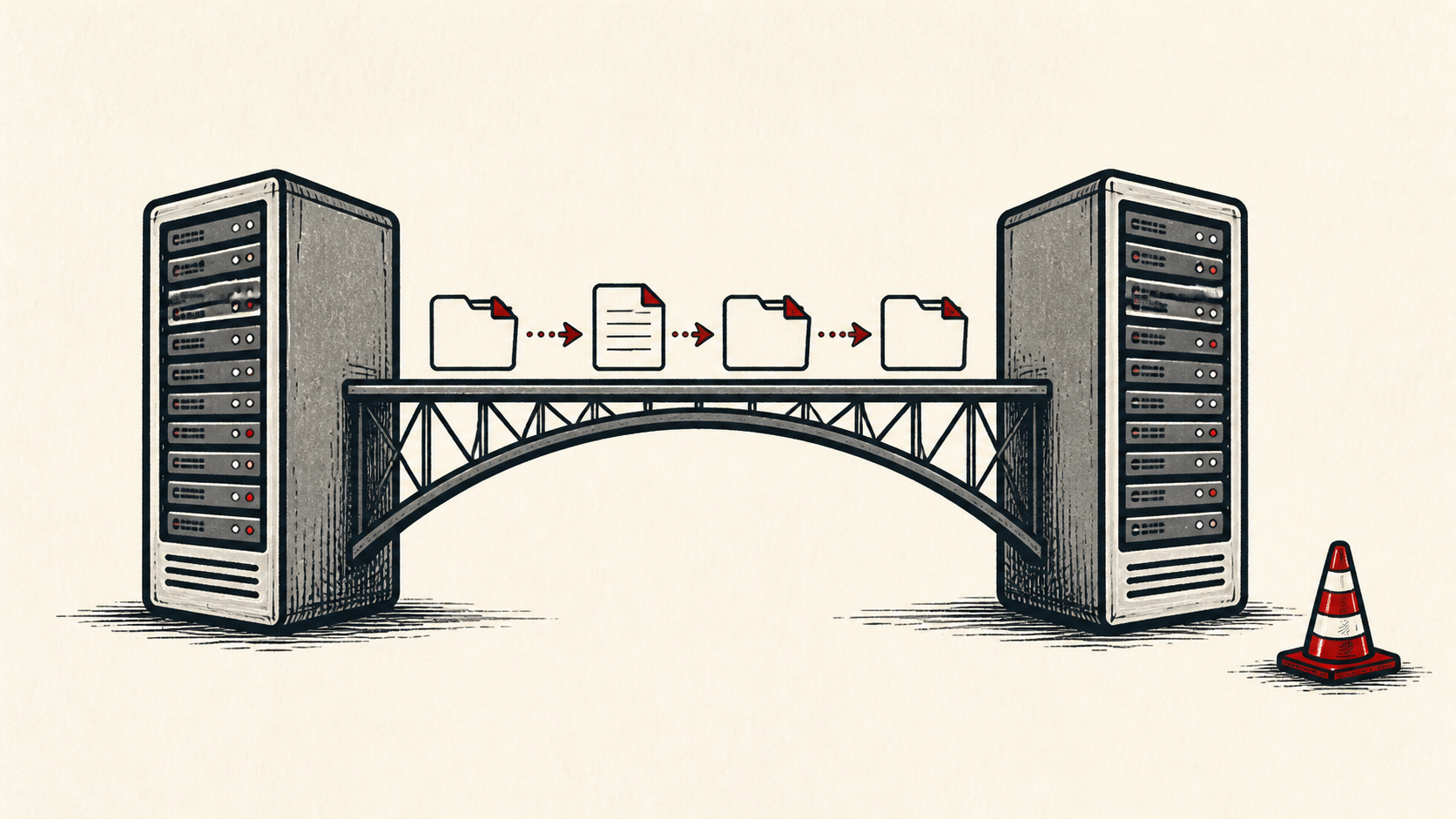
How to Export a Full Website Backup Before You Leave a Host
Export a website backup before leaving a host: download every file, run a database export, and verify the archive restores before you cancel.
By Matthew Zhao · Editor, Hosted EZ
Export a website backup before you cancel a hosting account, not after — once the account closes, the files and database usually go with it. This guide covers how to build a full website backup you actually own: every file, a database export, the DNS zone, and proof the archive restores.
It focuses on the steps a small-site owner can do safely, and points out where a host or developer needs to take over. Read how to choose a web host if you are picking the destination, and our migration guide before changing live infrastructure.
Inventory what a full website backup must include
Make an inventory before copying anything: files, database, redirects, email, DNS records, cron jobs, and integrations. The list catches the small dependencies that a file transfer cannot see.
Make a short note with account names, domain names, and where each export will be stored. Do not put passwords or recovery codes in the note.
Export the website backup piece by piece
Copy the files with the control panel's backup tool or SFTP, and take a database export from the database tool — for most sites that is a single .sql file. Export the DNS zone and any email if the host also runs your mail. Name each archive with the date, and download the website backup to your own computer, not to another server you might also leave.
Watch for the files transfer tools hide. SFTP clients often skip dotfiles such as .htaccess by default, and that one file can carry your redirects and security rules — turn on hidden files before you copy. Compare the file count and total size against what the control panel reports; a transfer that quietly dropped a directory looks complete until you check the numbers.
If the site keeps changing while you work, take the database export last, or take it again just before the final cutover, so the newest records make the trip.
Store the copies outside the hosting account, following the 3-2-1 backup rule. A backup that lives only on the host you are leaving is not an exit plan.
Verify the backup actually restores
Test the archive before moving live DNS: restore it to the new host or a local environment and check forms, logins, and error logs. A green homepage is not the same as a working site, and a database export can succeed as a download and still be incomplete.
Open the .sql file in a text editor and scroll to the end. A complete export finishes cleanly rather than stopping mid-table, and the final lines usually say the dump completed. It is a thirty-second check that catches the most common silent failure.
Keep the old host running until DNS has settled and you have a clean rollback decision. The old account is cheap insurance for the short period when caches and mail routes disagree.
When to stop and ask for help
Stop when the next action could overwrite data, change production mail, or remove access to the account. Send support the domain, time in UTC, exact error, and the changes you made. Include a screenshot when it shows the error, but do not include private keys or passwords.
ICANN's registrant FAQ has useful background on what you are entitled to take with you as the domain registrant. Use it to understand the terms, then return to the small, reversible next step.
A sensible maintenance habit
Do not save this job for departure day. Export a website backup on a schedule — monthly for a site that changes, and before every major update otherwise — so leaving a host is a decision rather than a rescue.
Keep the change auditable
Keep a short record per export: what it included, the date, the size, and where it is stored. A few months later, it tells you which archive to trust.
Do not confuse the host's backup page with a backup you hold. A dashboard can show nightly snapshots that vanish with the account. A downloaded, tested archive outside the account is the only copy that counts when you leave.
One last check
Before you cancel, open the downloaded archive one more time: confirm the file count looks right, the database export opens, and the restore you tested still exists somewhere you control. A quiet confirmation now is much easier than discovering a gap after the account is gone.
Leave a useful handoff
Save the export inventory and storage location with the date and account involved. Anyone who inherits the site should be able to find the archives without reconstructing your folder structure.
Bottom line
Export a website backup while you still have access: download the files, export the database, keep copies outside the account, and prove the archive restores. Then cancel the old host — in that order.
Frequently asked questions
Do I need to export everything at once?
No. Export one piece at a time — files, then database, then DNS — and verify each archive before moving on.
What information should I give hosting support?
Give the domain, exact URL or service, UTC time, error text, and steps already tried. That is usually enough for support to find the relevant logs.
Should I verify the backup before canceling the old host?
Yes. Restore the downloaded archive somewhere and confirm it works before any cancellation or edit that affects files, databases, email, or DNS.
Does the file backup include my email?
No. Mailboxes live in a separate system, so a file and database export leaves them behind. If the host also runs your mail, download each mailbox over IMAP or with the host's mail export tool, and copy the DNS records that route mail before you cancel.
About the author
Matthew Zhao
Matthew has spent his career running production server fleets — tens of thousands of machines' worth. He writes about hosting the way he wishes someone had explained it to him: plainly.
About Hosted EZ →Get the next guide in your inbox
One email when we publish something worth your time. No spam, unsubscribe whenever.