File Permissions Explained for Website Owners
File permissions explained in plain terms: what 644 and 755 mean, when chmod is the right tool, and how file ownership breaks updates and uploads.
By Matthew Zhao · Editor, Hosted EZ
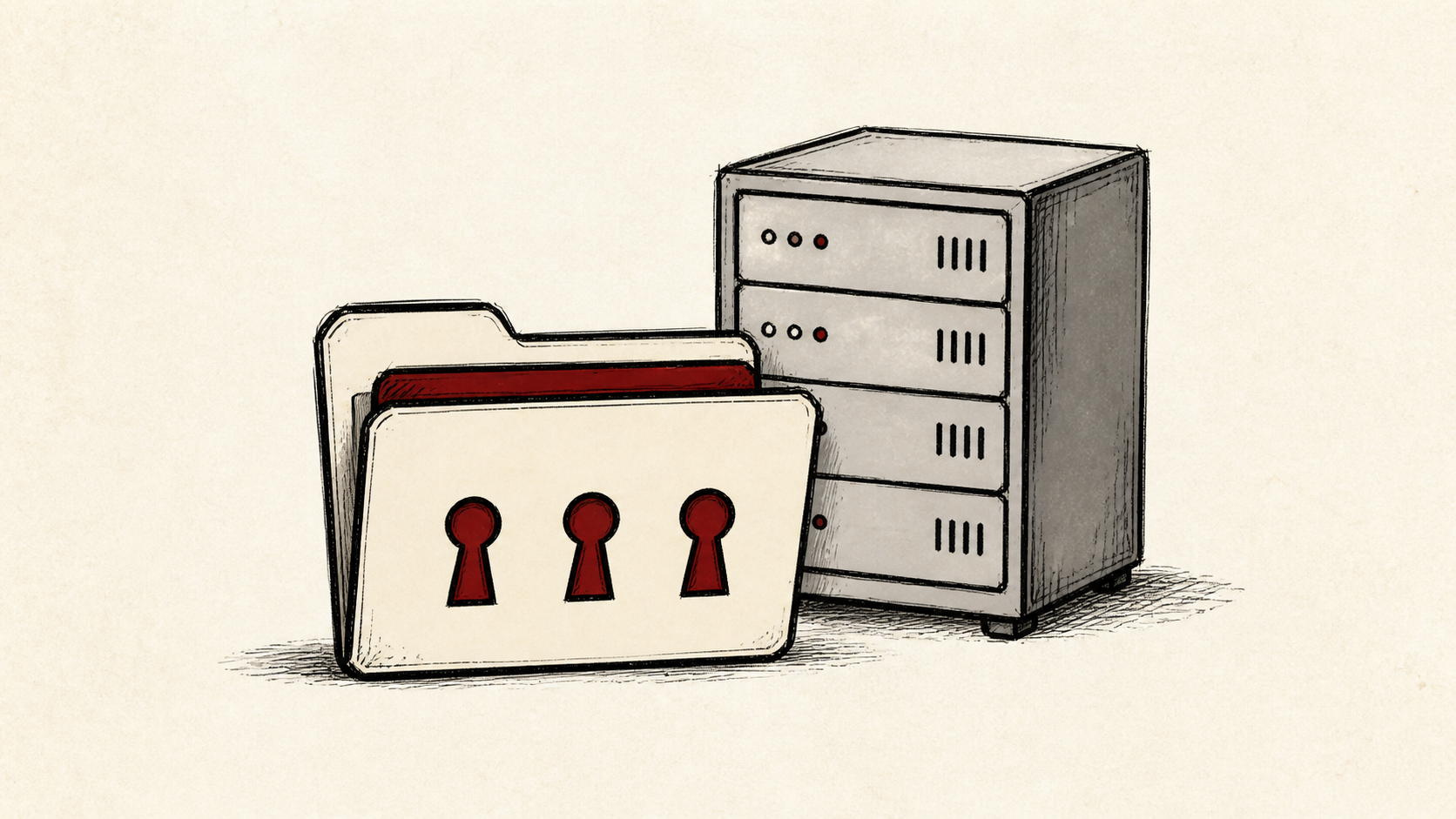
File permissions decide who can read, change, or run every file on your hosting account — and they fail in two directions. Too tight, and updates and uploads break; too loose, and any process on the server can rewrite your site. This guide explains the numbers, the chmod command, and the ownership problems behind most permission errors.
It focuses on the checks a small-site owner can make safely, and points out where a host or developer needs to take over. Read how to choose a web host if you need the broader setup, and our migration guide before changing live infrastructure.
What file permissions actually control
Every file has three audiences — the owner, the owner's group, and everyone else — and three abilities: read, write, and execute. A permission value is just those switches written as a number. The web server reads your files as one of those audiences, which is why one wrong setting can take a page from working to forbidden with no code change.
Before changing anything, note the current values. A recursive permission change without a record is one of the easiest ways to break a site in a way nobody can retrace.
644 and 755: the two numbers you need
For most sites, files should be 644 and directories 755: the owner can write, everyone else can only read, and directories stay traversable. Those 644 and 755 permissions are the safe default that platform documentation assumes.
Never leave anything at 777. World-writable files mean any compromised process on a shared server can edit your site. If a plugin's suggested fix is "set it to 777", treat that as a bug report, not advice.
Configuration files that hold credentials are the exception worth knowing. A file like a database config can drop to 600 — readable and writable by the owner alone — because nothing else on the server has a reason to open it. Tightening one named file is cheap insurance; tightening everything at once is how sites break.
When to reach for chmod
chmod is the command that changes permissions, and most hosting file managers expose the same numbers in a properties dialog, so you rarely need a terminal. Change one file or directory, test the page it affects in a private browser window, then continue.
If a permission looks right and the error persists, the real problem is usually file ownership: the files belong to a different user than the one the web server runs as. Uploads and updates fail this way after migrations and manual copies. Ownership changes usually need your host — that is a support ticket, not another chmod attempt.
When to stop and ask for help
Stop when the next action is a recursive change, an ownership change, or anything run as the root user. Send support the domain, the exact path, the current permission and ownership values, time in UTC, and the error text. Do not include private keys or passwords.
Certificate private keys are the sharpest example of why this matters: a world-readable key undermines your HTTPS entirely. Let's Encrypt documentation has useful background on how certificates and their key files are handled. Use it to understand the terms, then return to the small, reversible next step.
A sensible maintenance habit
Keep backups outside the production account and practice a restore. A backup that has never been opened is a hope, not a recovery plan — and it is also the fastest fix if a recursive permission change goes wrong.
Keep the change auditable
Use a short before-and-after record. Write the path, the old permission value, the new one, the exact time, and the result of the test. A few months later, it tells you why a file has an unusual value.
Do not confuse the file manager's display with evidence from the live site. The visitor still needs to receive the page you intended. Test from outside the account after each change, and use a private window if a cached answer could mislead you.
One last check
Repeat the action that surfaced the error — the upload, the update, the page load — as an ordinary visitor or admin, not as the root user. If the result differs, note the difference and keep troubleshooting from that point.
Leave a useful handoff
Save the paths you changed and their final values with the date and account involved. The next person should see which file permissions were adjusted without diffing the whole account.
Bottom line
File permissions come down to two habits: keep files at 644 and directories at 755 unless you have a written reason, and suspect file ownership when a correct-looking permission still fails. Record what you change, and hand ownership problems to your host.
Frequently asked questions
Should I change permissions recursively all at once?
No. Change one path, test the page it affects, and keep the previous values recorded until you know the result is stable.
What information should I give hosting support about a permission error?
Give the domain, the exact path, current permission and ownership values, UTC time, and the error text. That is usually enough for support to find the relevant logs.
Should I keep a backup before changing file permissions?
Yes. Download or verify a recent backup before edits that affect files, databases, email, DNS, or software versions.
Why does a page return 403 Forbidden after a permission change?
The web server lost the ability to read the file or to pass through a directory above it. Check the file is 644, then walk up the path and confirm every parent directory is 755 — one directory without execute permission blocks everything beneath it.
About the author
Matthew Zhao
Matthew has spent his career running production server fleets — tens of thousands of machines' worth. He writes about hosting the way he wishes someone had explained it to him: plainly.
About Hosted EZ →Get the next guide in your inbox
One email when we publish something worth your time. No spam, unsubscribe whenever.