How to Move WordPress to a New Host
Move WordPress to a new host without breaking it: take a full backup, copy files and database, test before DNS changes, and keep a rollback ready.
By Matthew Zhao · Editor, Hosted EZ
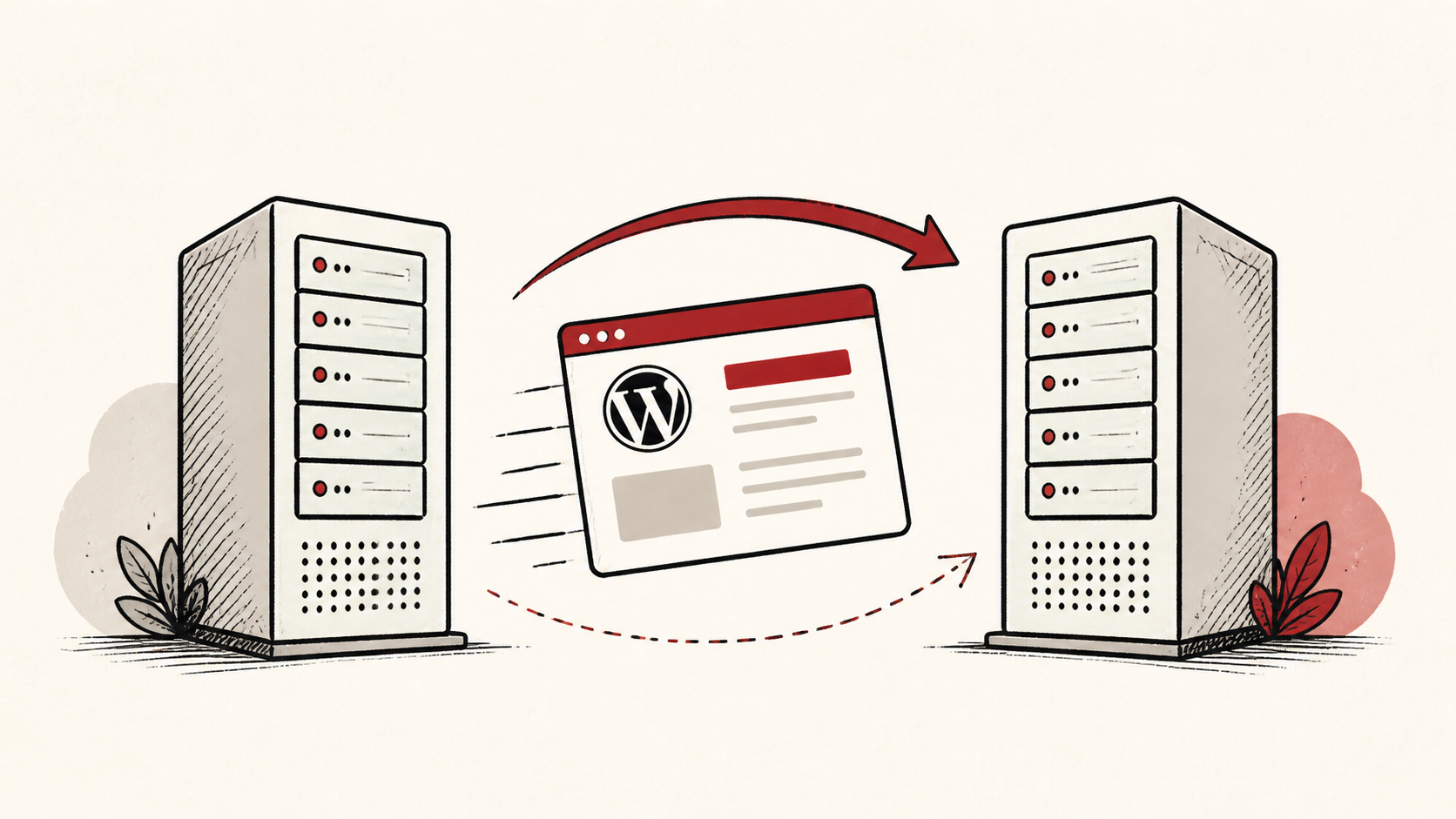
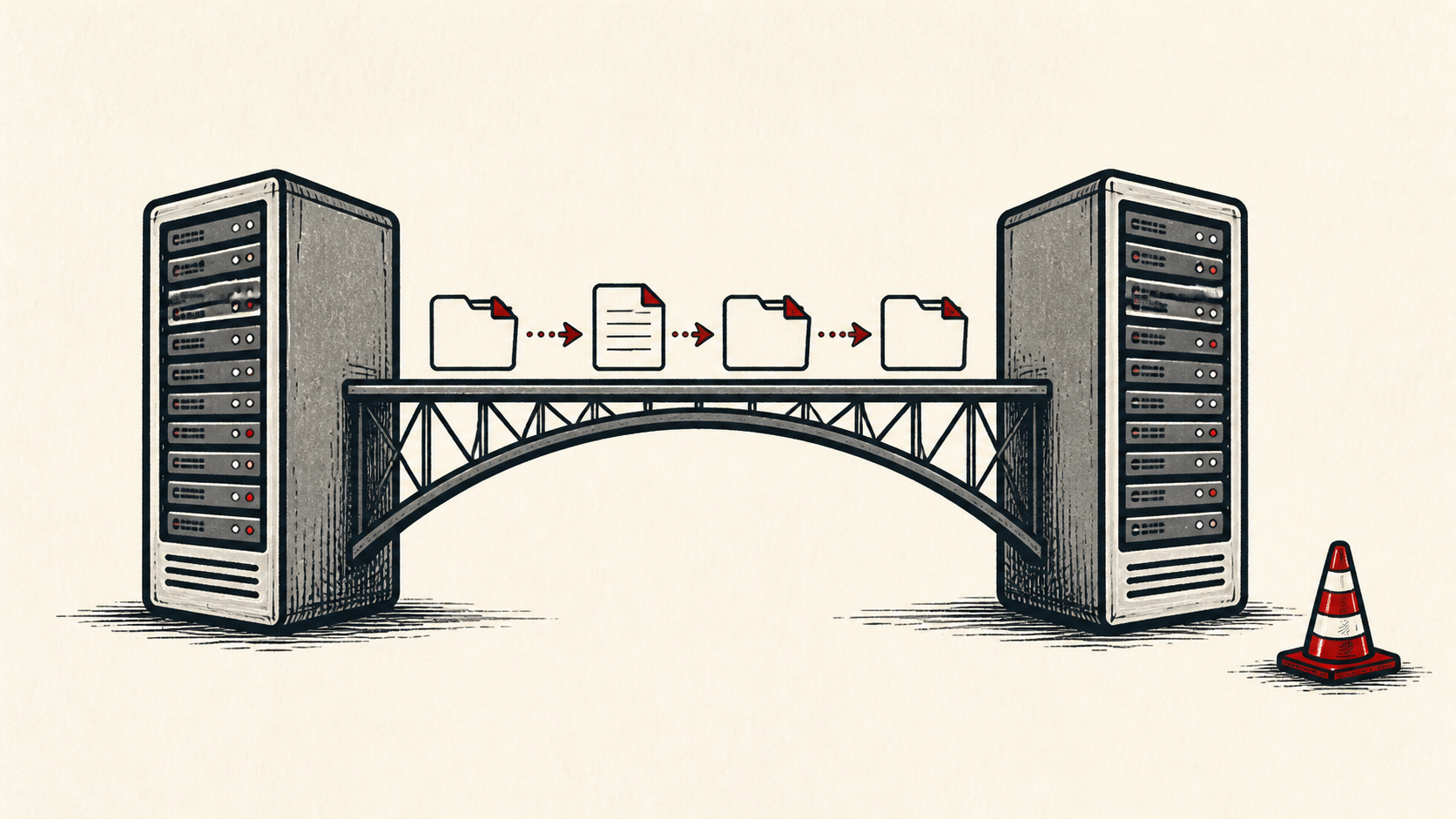
Moving WordPress to a new host is really two copies and a switch: copy the files, copy the database, prove the new copy works, then point DNS at it. Most of the horror stories come from doing those steps out of order. This guide keeps them in order and flags where WordPress specifically bites.
If you are still choosing the destination, read how to choose a web host first, and see our zero-downtime migration guide for the DNS mechanics that apply to any site.
Before you move WordPress to a new host, back it up
Take a WordPress backup that covers all of it: the files — themes, plugins, and the uploads folder — and the database, which holds your posts, pages, settings, and users. A backup missing either half is not a backup. Our WordPress backup guide covers doing this on a schedule, not just before migrations.
Make a short note of the pieces involved: hosting accounts, domain, database name, and any services wired in, such as email or a CDN. Do not put passwords or recovery codes in the note.
Copy the site and test it before DNS changes
Restore the backup on the new host and test there before moving live DNS. Log in to wp-admin, open a few posts, submit a form, and check the error logs — a green homepage is not the same as a working site. Broken database credentials in wp-config.php and hardcoded URLs are the two classic WordPress migration failures, and both show up in five minutes of honest testing.
Use a private browser window after each change. WordPress caching plugins and your browser can both serve stale pages that hide a real problem.
Switch DNS last and keep the old host running
When the new copy passes testing, point DNS at it and keep the old host running until the change settles. It is the boring, reliable way to move WordPress to a new host, and the old account is cheap insurance for the short period when caches and mail routes disagree.
Test the normal path first, then the part with the most consequence: checkout for a store, the contact form for a services site, comments for a blog. A test should answer one question rather than produce a vague impression.
When to stop and ask for help
Stop when the next action could overwrite the database, change production mail, or remove access to an account. Send support the domain, time in UTC, exact error, and the changes you made. Include a screenshot when it shows the error, but never private keys or passwords.
ICANN's registrant FAQ has useful background on how domains and their records are controlled: ICANN's registrant FAQ. Use it to understand the terms, then return to the small, reversible next step.
A sensible maintenance habit
Put the final configuration and the result in a short maintenance note: PHP version, active plugins, and where backups now run. WordPress problems repeat because nobody remembers which plugin was disabled last time or which host holds the database. A dated note turns the next incident into a lookup instead of an investigation.
Keep the change auditable
Keep a before-and-after record: the setting you found, its old value, the exact time you changed it, and the result of the test. If the change has a delay, such as a DNS TTL or a cache expiry, write the time you expect the new answer to be visible. Months later, the record tells you why the site is configured the way it is.
Do not confuse wp-admin or the host's dashboard with evidence from the live site. A dashboard can show a completed restore while visitors still receive cached pages from the old server. Test from outside the account, and use a second connection if a cached answer could mislead you.
If you hand the move to someone else, give them the record rather than a conclusion. "The site is slow since the move" is hard to investigate. "The delay began after the restore, affects this URL, and persists in a private window" gives the next person a useful starting point.
One last check
Before you close the move out, repeat the checks that matter on the ordinary path a visitor would use: load a few posts, log in, submit the form. If the result differs from the old host, note the difference and keep troubleshooting from that point. A quiet confirmation now is much easier than discovering the missed detail during a launch.
Leave a useful handoff
Save the final test results with the date and accounts involved. Whoever maintains the site next should see where WordPress now lives, where backups run, and what was verified, without reconstructing the move from browser history.
Bottom line
To move WordPress to a new host, keep the order fixed: full backup, restore, test at the new address, then DNS. Keep the old host until the new one has served real traffic for a few days, and the worst case for the whole move is one DNS change back.
Frequently asked questions
Do I need to migrate a WordPress site all at once?
No. Move one piece at a time — the site first, email separately if it lives with your hosting — and keep the previous setup until you know the result is stable.
What should I send support if the site shows errors after the move?
Give the domain, exact URL, UTC time, the error text or a description of the blank page, and steps already tried. That is usually enough for support to find the relevant logs.
What should a WordPress backup include before a move?
Everything: core files, themes, plugins, the uploads folder, and a database export. Verify you can open the archive before you rely on it — an unreadable backup gets discovered at the worst possible moment.
About the author
Matthew Zhao
Matthew has spent his career running production server fleets — tens of thousands of machines' worth. He writes about hosting the way he wishes someone had explained it to him: plainly.
About Hosted EZ →Get the next guide in your inbox
One email when we publish something worth your time. No spam, unsubscribe whenever.