How to Test a Website on a New Host Before Changing DNS
Test your website before the DNS change: preview it on the new host with your hosts file and fix what broke while visitors still see the old site.
By Matthew Zhao · Editor, Hosted EZ
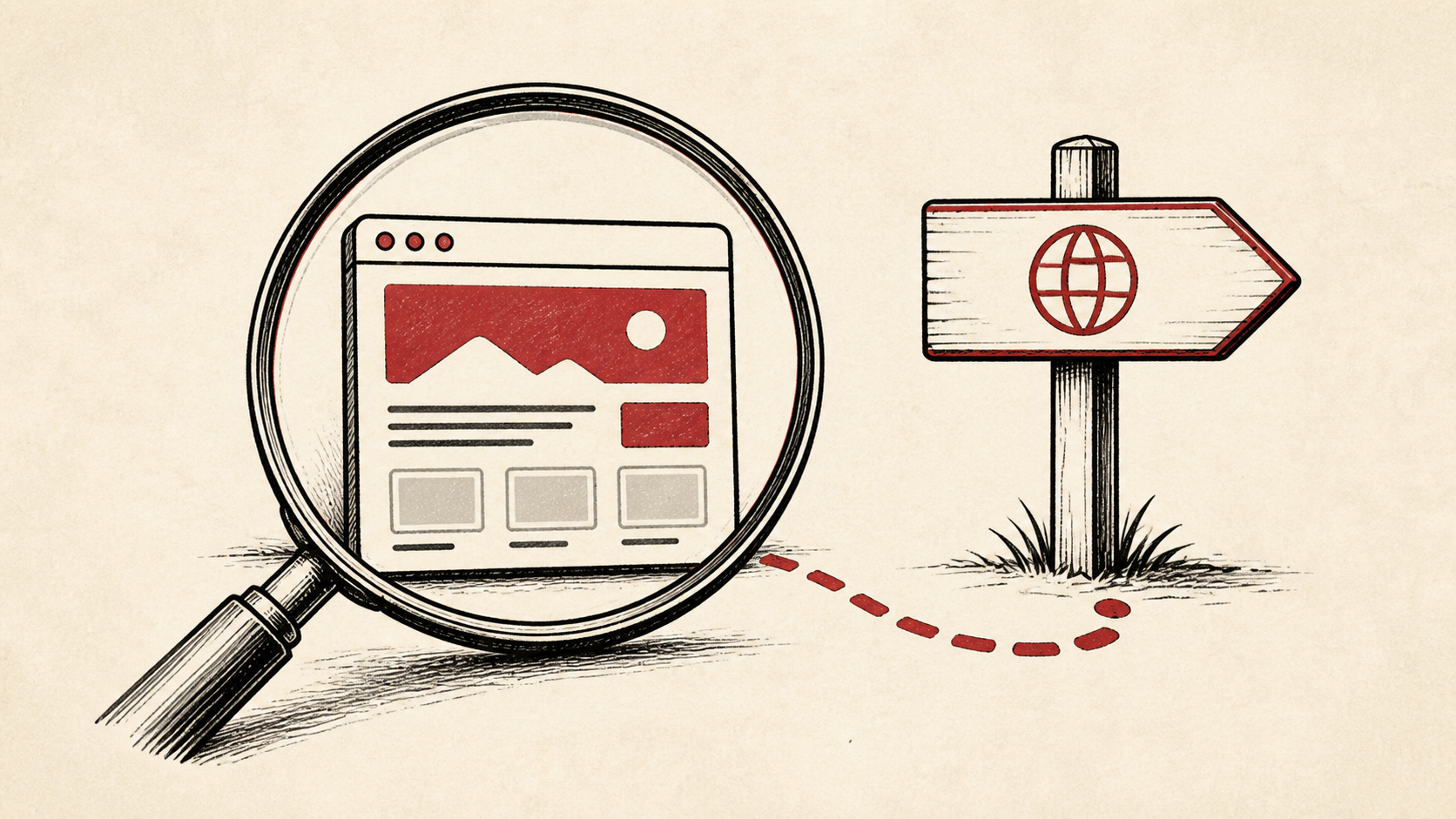
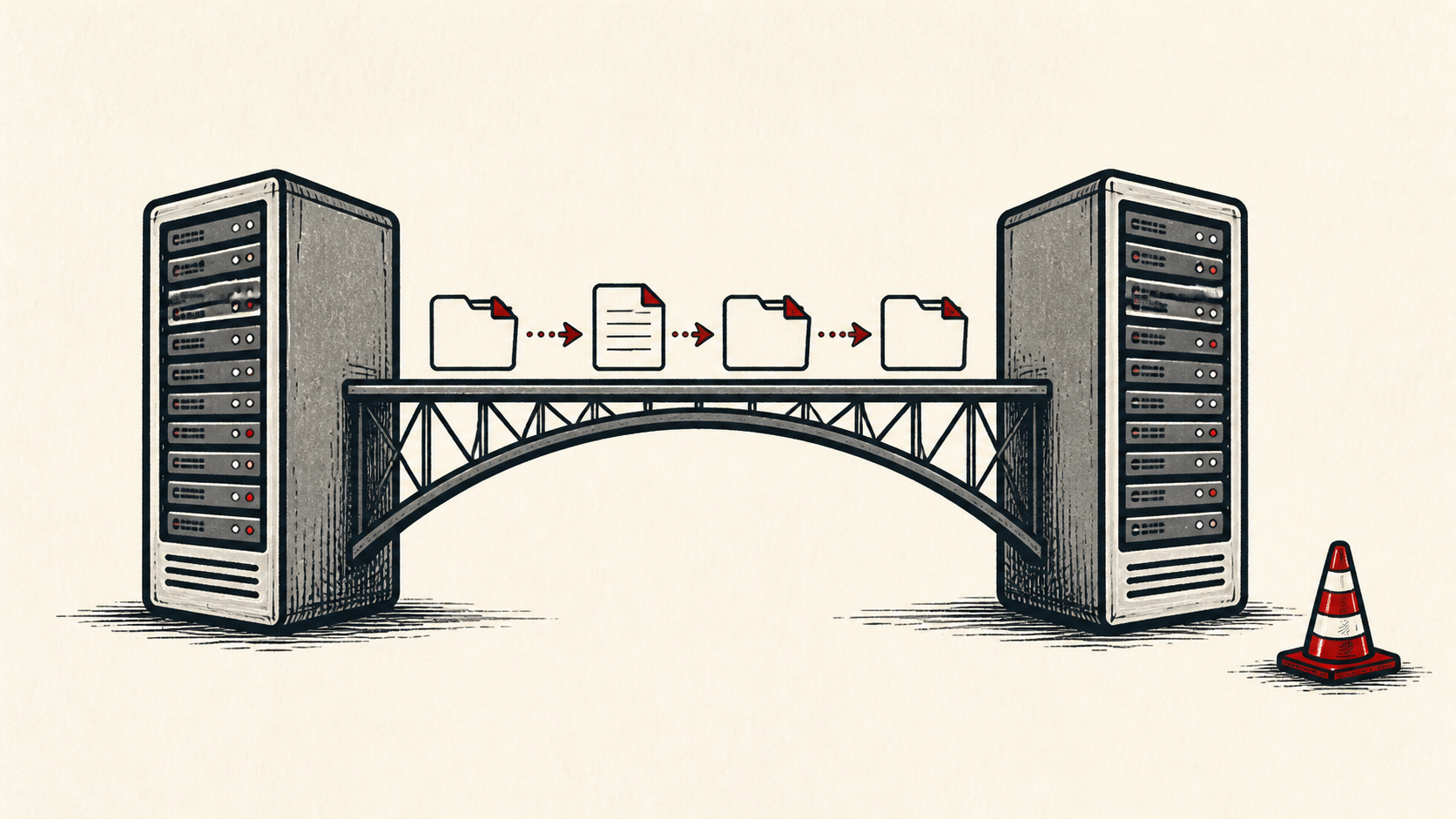
Testing a website before a DNS change is the difference between a private fix and a public outage: while the domain still points at the old host, you can preview the copied site on the new server and repair whatever broke in transit. This guide covers the hosts file trick, what to test, and how to be sure you are looking at the new host rather than a cached old one.
Read how to choose a web host if you are still picking the broader setup, and our guide to migrating hosts without downtime for the full move this testing belongs to.
Inventory what you copied
Make an inventory before copying anything: files, database, redirects, email, DNS records, cron jobs, and integrations. The list catches the small dependencies a file transfer cannot see — and it becomes your test checklist.
Note account names, domains, and the last known working time. No passwords or recovery codes; just enough to retrace the work.
Preview the website before DNS changes: the hosts file
The standard trick is your computer's hosts file: add a line mapping your domain to the new server's IP address, and your browser alone is sent to the new host while the rest of the world still sees the old site. Remove the line when you finish testing.
Some hosts also give you a temporary preview URL, and a staging site serves the same purpose when your platform provides one. The hosts file is still worth using — it tests the site under its real domain name, which a preview URL cannot.
Test the website before the DNS change, not after
Check forms, logins, transactions, scheduled jobs, and error logs on the new host. A green homepage is not the same as a working site.
Test the normal path first, then the part with the most consequence — checkout for a store, the inbox for a form, the new database for a migration. A test should answer one question rather than produce a vague impression.
Keep the old host warm
Keep the old host running until DNS has settled and you have a clean rollback decision. The old account is cheap insurance for the short period when caches and mail routes disagree.
When you do flip DNS, note the TTL and give the old answer time to expire before judging the result. A private window or second device avoids being misled by your own cache — or by your own hosts file entry, which overrides DNS entirely until you delete it.
When to stop and ask for help
Stop when the next action could overwrite data, change production mail, or remove access to either account. Send support the domain, time in UTC, exact error, and the changes you made, but never private keys, passwords, or payment information.
ICANN's registrant FAQ has useful background on who controls a domain and its records. Use it to understand the terms, then return to the small, reversible next step.
A sensible maintenance habit
Keep a dated note of what you tested and the result. Migrations repeat, and the checklist that caught the broken contact form this time is the one you will want next time.
Keep the change auditable
Record what you changed and when: the hosts file entry, the DNS records with their old values, and the TTL. The hosts file line especially — a forgotten entry means your machine keeps visiting the new server while you debug "DNS problems" that do not exist.
Do not confuse your preview with the public site. Until DNS moves, visitors still receive the old host; after it moves, confirm with an independent lookup from outside your own machine.
If you hand the migration to someone else, give them the checklist and results rather than a conclusion. "The new site works" is a claim; the list of what was tested and when is evidence.
One last check
After DNS settles, remove the hosts file entry and load the site the ordinary way, as a visitor would. If anything differs from your preview, keep troubleshooting from that difference.
Leave a useful handoff
Save the test checklist and results with the date. If someone else finishes the migration, they should see what was verified on the new host without reconstructing it.
Bottom line
Testing the website before the DNS change turns a migration into a non-event: preview the new host through your hosts file, work through the checklist while the old site still serves visitors, and flip DNS only when the boring tests all pass.
Frequently asked questions
How do I edit my hosts file?
On Windows it lives at C:\Windows\System32\drivers\etc\hosts; on macOS and Linux it is /etc/hosts. Add a line with the new server's IP address and your domain, save with administrator rights, and delete the line after testing.
Do I need to test everything before changing DNS?
Test the paths that matter one at a time — forms, login, checkout — and keep the old host until the new one is stable. No single pass catches everything, which is exactly why the old host stays up.
What should I give hosting support if the new copy misbehaves?
The domain, exact URL or service, UTC time, error text, and steps already tried. Mention that DNS has not moved yet — it tells support which server's logs to read.
Should I keep a backup before the switch?
Yes. Verify a recent backup of files, database, email, and DNS values before the move — the whole exercise assumes you can step back.
About the author
Matthew Zhao
Matthew has spent his career running production server fleets — tens of thousands of machines' worth. He writes about hosting the way he wishes someone had explained it to him: plainly.
About Hosted EZ →Get the next guide in your inbox
One email when we publish something worth your time. No spam, unsubscribe whenever.