Contact Form Not Sending Email? Why Messages Go Missing and How to Fix It
Contact form not sending email? The usual causes — server mail defaults, missing SMTP, failed authentication — and how to fix each one.
By Matthew Zhao · Editor, Hosted EZ
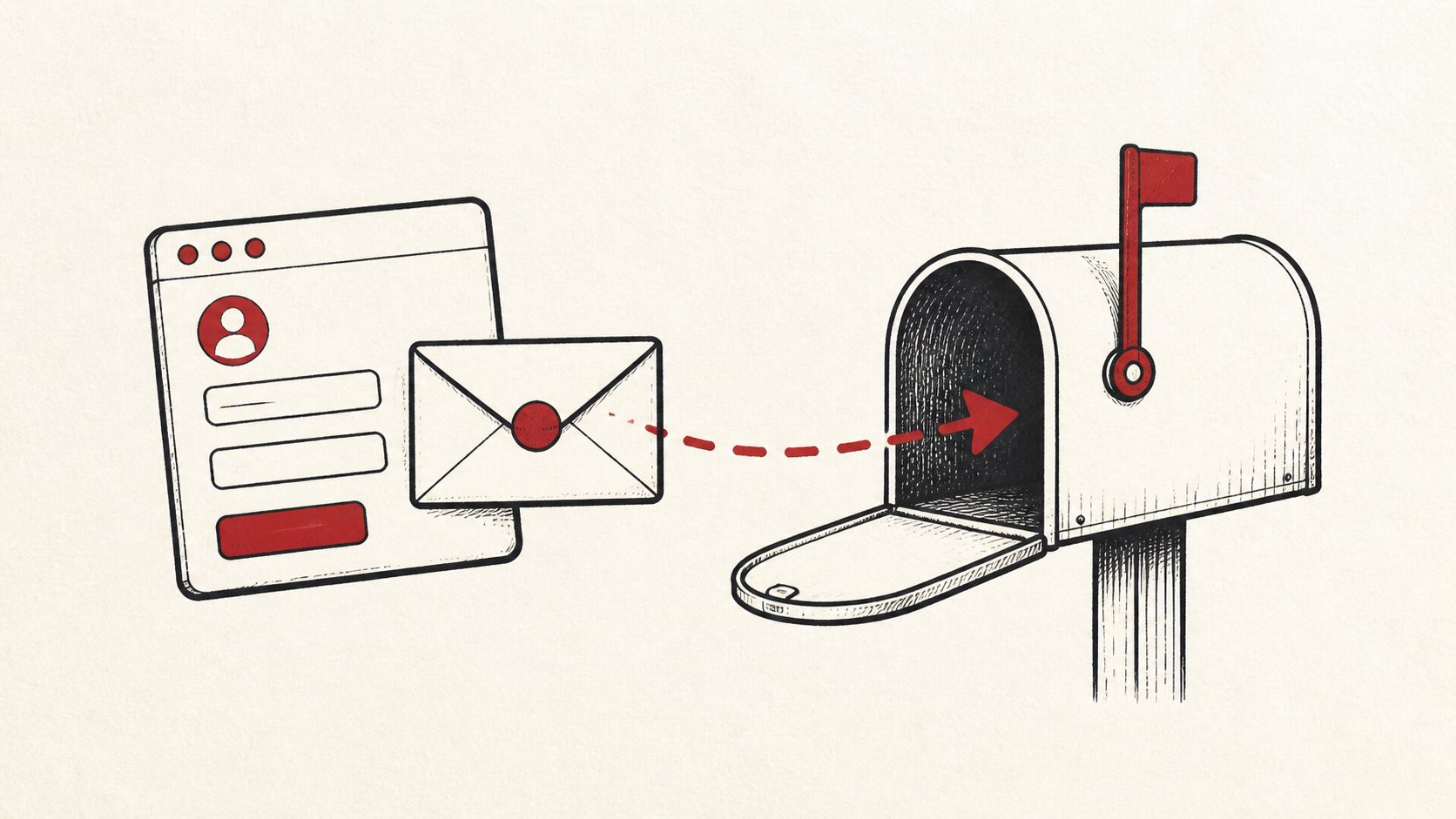
A contact form not sending email is one of the quietest failures a site can have: the visitor sees "message sent" while nothing arrives. The cause is almost always on a short list — the form sends through the server's default mail function instead of authenticated SMTP, or the message fails authentication and dies in a spam filter. This guide works through that list in order.
This guide focuses on the checks a small-site owner can make safely. It also points out where a host, registrar, email provider, or developer needs to take over. Read how to choose a web host if you need the broader setup, SPF, DKIM, and DMARC explained for the records that decide whether form mail is trusted, and our migration guide before changing live infrastructure.
Form email deliverability is a DNS problem too
Treat email delivery as a DNS and reputation problem as well as a mailbox problem. A message can leave your site and still fail authentication, get filtered, or arrive at the wrong service. Form email deliverability depends on the same records as the rest of your mail.
Make a short note with account names, domain names, the form plugin or tool involved, and the last known working time. Do not put passwords or recovery codes in the note. You want enough detail to retrace the work without creating a new security risk.
Contact form not sending email: the usual causes
If the form uses the server's built-in mail function, switch it to authenticated SMTP — an SMTP plugin or the form tool's own setting — so mail leaves through a real mailbox provider with a reputation. A WordPress contact form not working is usually this exact gap rather than a broken plugin.
List every sender before you edit MX, SPF, DKIM, or DMARC. That includes newsletters, forms, invoices, help desks, and staff mail. A record that fixes one sender can break another, and if a DNS record is involved, note the TTL and allow the old answer time to expire before assuming the change failed.
Test the result like a visitor
Test with a real form submission after each change and inspect the received headers. An inbox is the final result, but the headers tell you why a provider accepted or distrusted the message.
Submit the form the way a visitor would, from a private browser window, and send to an address at a different provider than your own. A test should answer one question rather than produce a vague impression.
When to stop and ask for help
Stop when the next action could overwrite data, change production mail, or remove access to the account. Send support the domain, time in UTC, exact error, and the changes you made. Include a screenshot when it shows the error, but do not include private keys, passwords, or full payment information.
The SMTP standard has useful background on how mail actually moves between servers: the SMTP standard. Use it to understand the terms, then return to the small, reversible next step.
A sensible maintenance habit
Put the final configuration and the result in a short maintenance note. Form problems repeat because nobody remembers which sending account the plugin uses or which DNS record was edited last time. A dated note turns the next missing-message report into a lookup instead of an investigation.
Keep the change auditable
Use a short before-and-after record. Write the setting you found, its old value, the exact time you changed it, and the result of the test. If the change has a delay, such as a DNS TTL, write the time you expect the new answer to be visible. This record is useful even when everything works. A few months later, it tells you why a setting has an unusual value.
Do not confuse an account dashboard with evidence from the live site. A plugin can report "email sent" when it only means "email handed to the server." The message still needs to arrive in a real inbox. Test from outside the account, and check the spam folder before concluding anything.
If you hand the task to someone else, give them the record rather than a conclusion. "The form is broken" is hard to investigate. "Submissions stopped arriving after this plugin update, the plugin log shows success, and test messages land in spam at this provider" gives the next person a useful starting point.
One last check
Before you close the ticket or move to the next task, submit the form once more from a private window and confirm the message reaches the destination inbox, not just the plugin log. If the result is different, note the difference and keep troubleshooting from that point. A quiet confirmation now is much easier than discovering weeks of missing leads later.
Leave a useful handoff
Save the final test result with the date, the sending account, and the form tool involved. If someone else needs to revisit the work, they should be able to see what changed without reconstructing the whole incident from browser history.
Bottom line
A contact form not sending email is usually fixed in two moves: send through authenticated SMTP instead of the server default, then align SPF and DKIM so providers trust the result. Change one setting at a time, test with a real submission, and keep the record of what you changed.
Frequently asked questions
Do I need to change every email setting at once to fix a contact form?
No. Change one setting at a time — the sending method first, then DNS records — test with a real submission, and keep the previous value until you know the result is stable.
What should I send hosting support about a contact form not sending email?
Give the domain, the form page URL, UTC time of a test submission, any error text, and steps already tried. That is usually enough for support to find the mail logs.
Should I keep a backup before changing email or DNS settings?
Yes. Save the current mail settings and DNS records before edits, so you can restore the last working configuration quickly.
About the author
Matthew Zhao
Matthew has spent his career running production server fleets — tens of thousands of machines' worth. He writes about hosting the way he wishes someone had explained it to him: plainly.
About Hosted EZ →Get the next guide in your inbox
One email when we publish something worth your time. No spam, unsubscribe whenever.