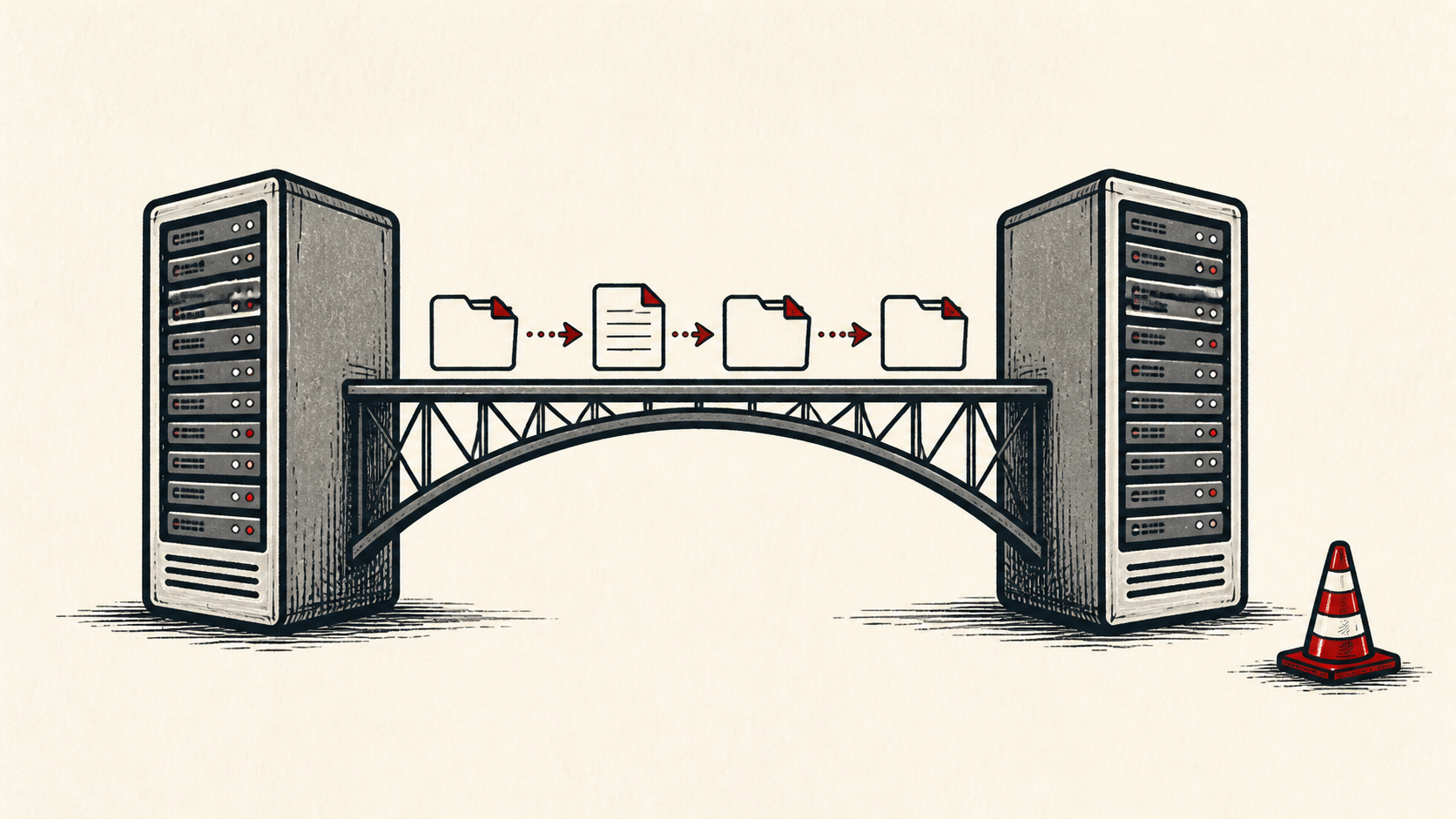
Website Migration Checklist: Plan the Move Before Touching DNS
Website migration checklist for small sites: inventory everything, test on the new host, and keep a rollback ready before DNS moves.
By Matthew Zhao · Editor, Hosted EZ

A website migration checklist exists to make the move boring, which is the goal. The right approach is to inventory what you have, copy it, and test the copy before DNS moves anywhere. It is tempting to transfer the files and call it done. That usually creates a second problem with less evidence.
This guide focuses on the checks a small-site owner can make safely. It also points out where a host, registrar, email provider, or developer needs to take over. Read how to choose a web host if you need the broader setup, and our guide to migrating without downtime before changing live infrastructure.
Every website migration checklist starts with an inventory
Make an inventory before copying anything: files, database, redirects, email, DNS records, cron jobs, and integrations. The list catches the small dependencies that a file transfer cannot see. Redirects and URL changes belong on an SEO migration checklist of their own, so map old URLs to new ones now rather than after rankings move.
Make a short note with account names, domain names, the exact URL involved, and the last known working time. Do not put passwords or recovery codes in the note. You want enough detail to retrace the work without creating a new security risk.
Work the migration plan on the new host first
Test on the new host before moving live DNS. Check forms, logins, transactions, scheduled jobs, and error logs. A green homepage is not the same as a working site.
Use a private browser window or a separate device after a change. That removes some of the confusion caused by cookies and cached redirects. If a DNS record is involved, note the TTL and allow the old answer time to expire before assuming the change failed.
Test the result like a visitor
Keep the old host running until DNS has settled and you have a clean rollback decision. The old account is cheap insurance for the short period when caches and mail routes disagree.
Test the normal path first, then the part that has the most consequence. For a store, that is checkout. For a form, it is receiving the email. For a migration, it is the new site using the new database. A test should answer one question rather than produce a vague impression.
When to stop and ask for help
Stop when the next action could overwrite data, change production mail, or remove access to the account. Send support the domain, time in UTC, exact error, and the changes you made. Include a screenshot when it shows the error, but do not include private keys, passwords, or full payment information.
ICANN's registrant FAQ has useful background on the standards behind this topic: ICANN's registrant FAQ. Use it to understand the terms, then return to the small, reversible next step.
A sensible maintenance habit
Put the final configuration and the completed website migration checklist in a short maintenance note. Hosting problems repeat because nobody remembers which account owns a record or which plugin was disabled last time. A dated note turns the next incident into a lookup instead of an investigation.
Keep the change auditable
Use a short before-and-after record. Write the setting you found, its old value, the exact time you changed it, and the result of the test. If the change has a delay, such as a DNS TTL or a cache expiry, write the time you expect the new answer to be visible. This record is useful even when everything works. A few months later, it tells you why a setting has an unusual value.
Do not confuse an account dashboard with evidence from the live site. A dashboard can show that it accepted a record or a deployment. The visitor still needs to receive the page, email, redirect, or certificate you intended. Test from outside the account, and use a second connection if a cached answer could mislead you.
If you hand the task to someone else, give them the record rather than a conclusion. "The site is slow" is hard to investigate. "The delay began after this update, affects this URL, and persists in a private window" gives the next person a useful starting point.
One last check
Before you close the ticket or move to the next task, repeat the action that prompted the change. Use the ordinary path a visitor or colleague would use, not only the account dashboard. If the result is different, note the difference and keep troubleshooting from that point. A quiet confirmation now is much easier than discovering the missed detail during a launch or an outage.
Leave a useful handoff
Save the final test result with the date and account involved. If someone else needs to revisit the work, they should be able to see what changed without reconstructing the whole incident from browser history.
Bottom line
A website migration checklist works when you inventory first, test on the new host, and keep the old account until DNS settles. Keep evidence of each change, protect your backups, and ask support before a routine step turns into a data-loss risk.
Frequently asked questions
Do I need to migrate everything at once?
No. Change one related setting, test it, and keep the previous value until you know the result is stable.
What information should I give hosting support during a migration?
Give the domain, exact URL or service, UTC time, error text, and steps already tried. That is usually enough for support to find the relevant logs.
Should a site migration checklist include a backup?
Yes. Download or verify a recent backup before edits that affect files, databases, email, DNS, or software versions.
About the author
Matthew Zhao
Matthew has spent his career running production server fleets — tens of thousands of machines' worth. He writes about hosting the way he wishes someone had explained it to him: plainly.
About Hosted EZ →Get the next guide in your inbox
One email when we publish something worth your time. No spam, unsubscribe whenever.