How to Find and Use WordPress Error Logs
Find your WordPress error log fast: where the PHP error log lives, how to turn on WP_DEBUG safely, and how to read the first useful line.
By Matthew Zhao · Editor, Hosted EZ
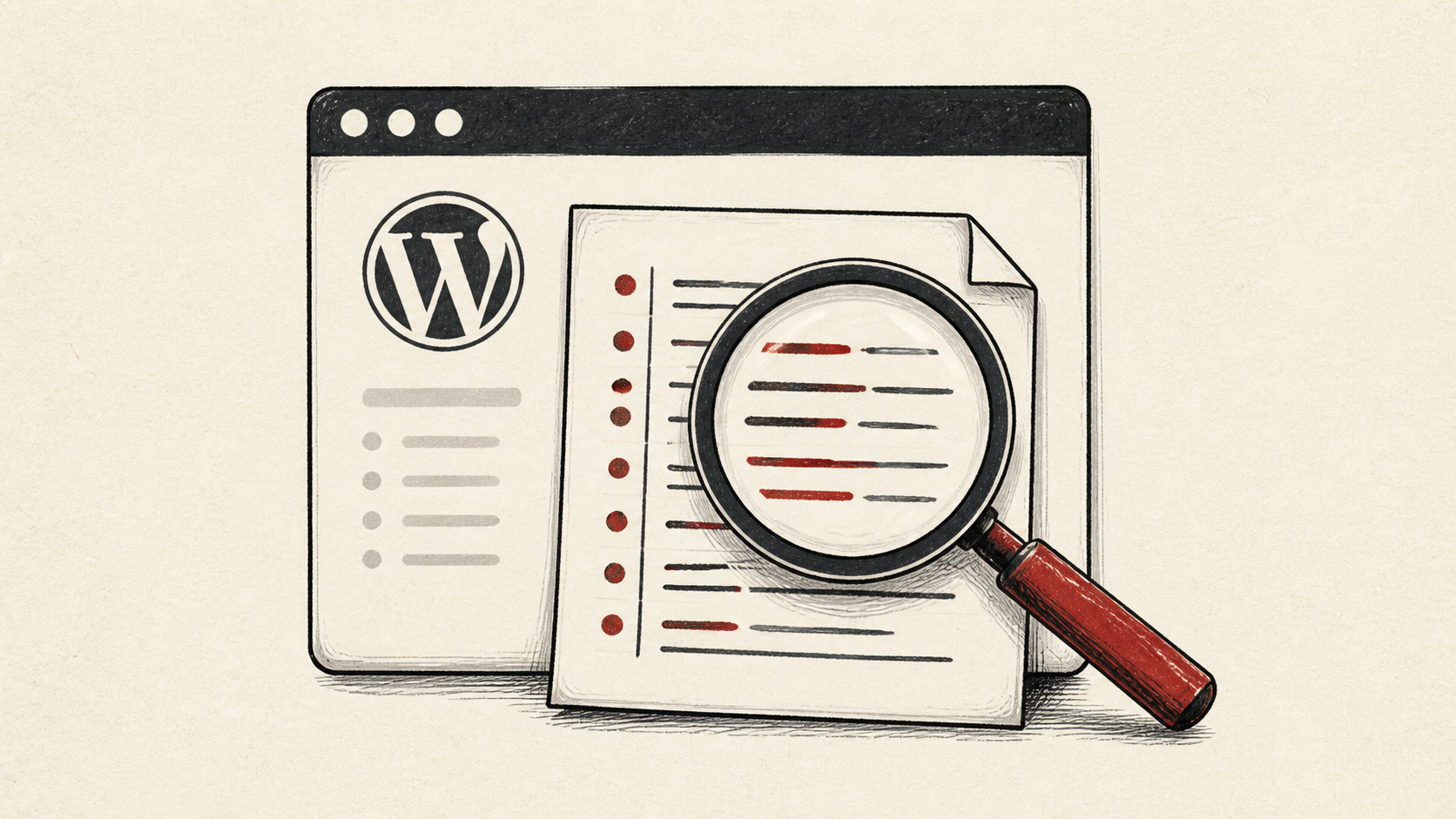
Your WordPress error log is the difference between guessing and knowing. When a plugin update fails or a page goes blank, the log names the file, the line, and usually the plugin at fault — before you start deactivating things alphabetically. This guide shows where the logs live, how to switch them on, and how to read the first useful line.
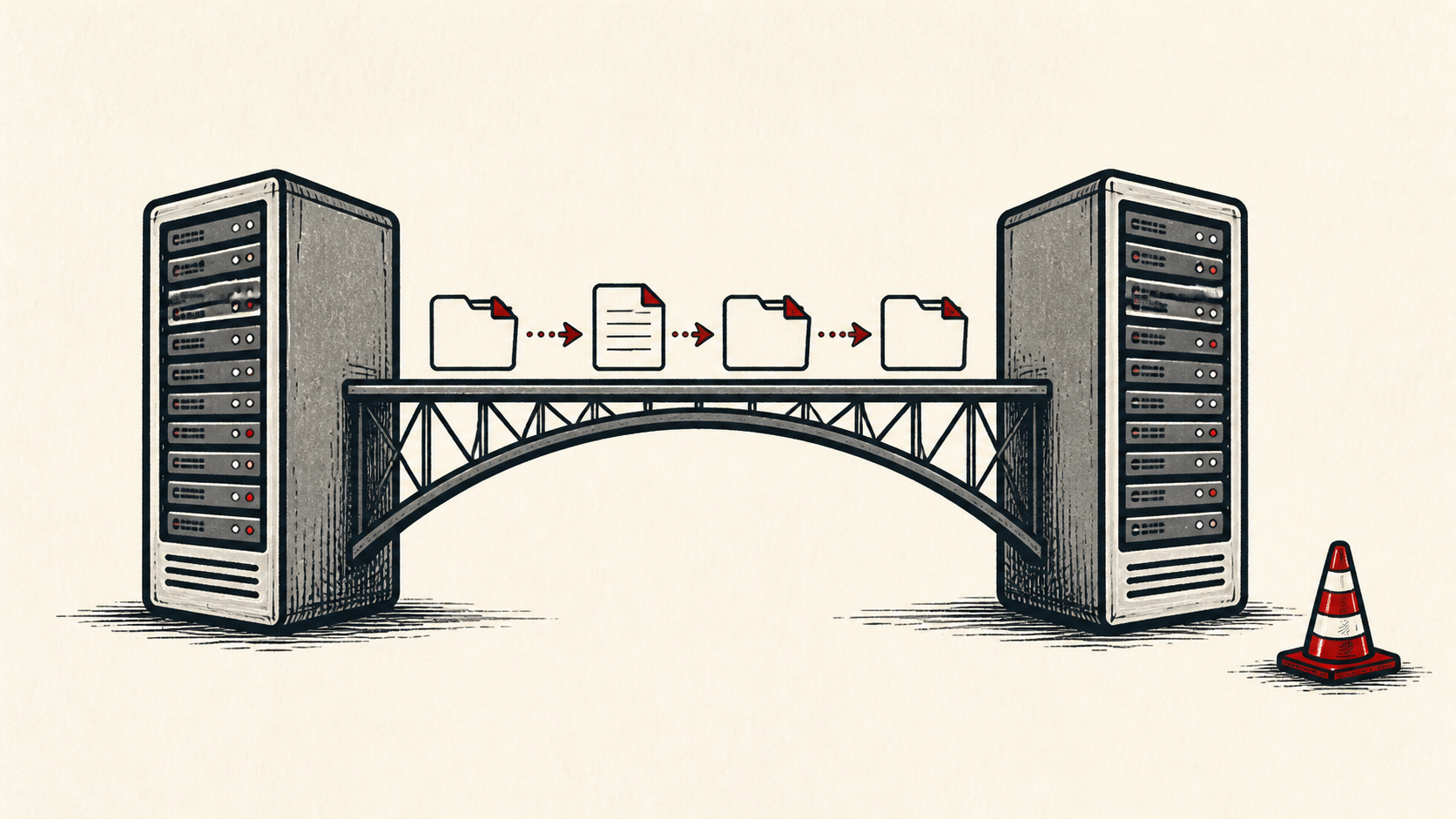
This guide focuses on the checks a small-site owner can make safely, and points out where a host or developer should take over. Read how to choose a web host if you are still picking a provider, and how to migrate hosting without downtime before changing live infrastructure.
Find the WordPress error log on your host
There are two logs, and they live in different places. The PHP error log belongs to the server and your host keeps it — usually visible in the control panel under a name like "errors", or through cPanel's log viewer. The WordPress debug log is a file WordPress writes itself, at wp-content/debug.log, and it only exists once you turn it on.
Make a short note of which log you are reading and the last known working time. Do not paste log lines containing file paths and usernames into public forums without trimming them first.
Turn on WP_DEBUG without showing errors to visitors
In wp-config.php, set WP_DEBUG and WP_DEBUG_LOG to true, and keep WP_DEBUG_DISPLAY set to false. That combination writes errors to the debug log without printing them on the page, where they would hand strangers your file paths.
Use a staging copy for debugging that touches checkout, membership, or forms. And turn logging back off when you are done — a debug log grows without limit and is publicly readable on some servers.
Read the log from the newest line back
Read the error log before reinstalling WordPress or deleting plugins. Start from the most recent lines: the first useful one usually points to a plugin, theme, memory limit, or PHP version mismatch.
Then test like a visitor. Fix one thing, reload the page that failed, and check whether the same line stops appearing. A test should answer one question rather than produce a vague impression.
When to stop and ask for help
Stop when the log points at something you cannot change, such as the server's own configuration. Send support the domain, the exact URL, the time in UTC, and the log lines themselves — they can match those against the server's PHP error log and other logs you cannot see. Trim passwords and keys before sending anything.
Fatal errors often trace back to an unsupported PHP or database version, and WordPress's server requirements lists what current WordPress expects. Use it to understand the terms, then return to the small, reversible next step.
A sensible maintenance habit
Skim the WordPress error log after every update rather than only during outages. Hosting problems repeat because nobody remembers which plugin filled the log last time. A dated note turns the next incident into a lookup instead of an investigation.
If the symptom is a blank page rather than an error message, start with our WordPress white screen of death guide — the log is still the first stop.
Keep the change auditable
Use a short before-and-after record. Write the error line you found, the change you made, the exact time, and whether the line stopped appearing. This record is useful even when everything works. A few months later, it tells you why a plugin was replaced.
Do not confuse a quiet dashboard with a quiet site. Errors can keep landing in the log while cached pages look fine to you. Check the log itself, and test from a private browser window where a cached answer cannot mislead you.
If you hand the task to someone else, give them the log lines rather than a conclusion. "The site is broken" is hard to investigate. "This warning began after this update and repeats on this URL" gives the next person a useful starting point.
One last check
Before you close the ticket, reload the page that originally failed and read the newest lines one more time. A quiet log and a working page together are the confirmation; either one alone is not.
Leave a useful handoff
Save the relevant log excerpt with the date and the fix that worked. If someone revisits the problem, they should be able to see what changed without reconstructing the incident from browser history.
Bottom line
A WordPress error log turns "the site broke" into a specific file and line. Turn on the WordPress debug log deliberately, read from the newest entry back, and make one reversible change at a time — then switch WP_DEBUG off again once the page works.
Frequently asked questions
Do I need to fix every error in the log at once?
No. Warnings and notices can wait. Fix the fatal error that broke the page first, change one thing at a time, and keep the previous value until the log stays quiet.
What information should I give hosting support?
Give the domain, exact URL, UTC time, the log lines verbatim, and the steps already tried. That is usually enough for support to match your report against the server logs.
Should I keep a backup before changing wp-config.php?
Yes. Copy the file before editing it — a syntax error in wp-config.php takes the whole site down, and restoring the copy is the fastest way back.
About the author
Matthew Zhao
Matthew has spent his career running production server fleets — tens of thousands of machines' worth. He writes about hosting the way he wishes someone had explained it to him: plainly.
About Hosted EZ →Get the next guide in your inbox
One email when we publish something worth your time. No spam, unsubscribe whenever.