How to Change Your WordPress PHP Version Safely
Change your WordPress PHP version without breaking the site: check PHP compatibility, test on staging, and keep a fast rollback path.
By Matthew Zhao · Editor, Hosted EZ
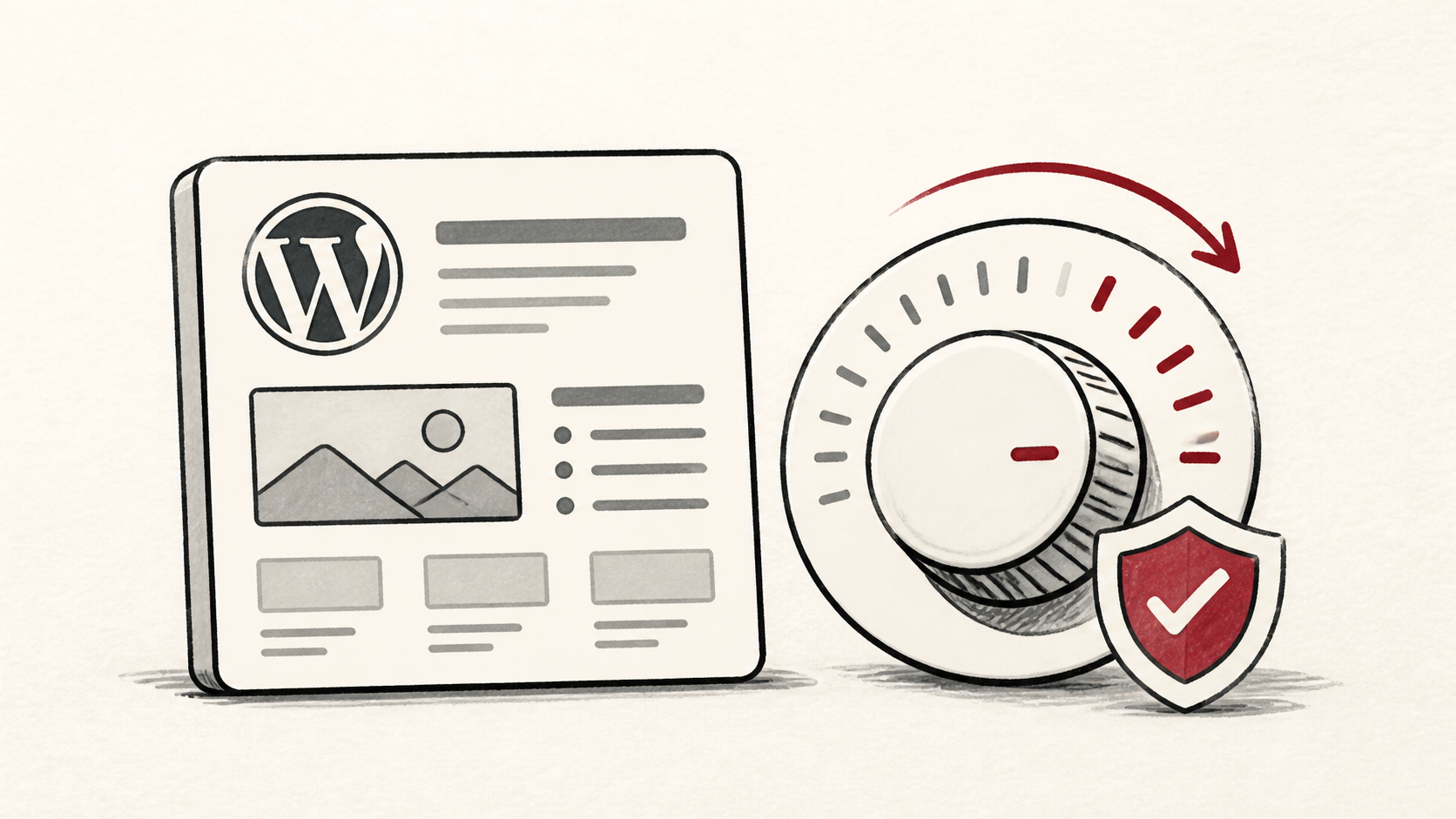
Your WordPress PHP version decides security patches, page speed, and whether next month's plugin updates even run. Hosts make switching versions a one-click menu, which is exactly why it breaks sites: the click is easy, the compatibility check is not. This guide walks through how to update PHP for a WordPress site in an order you can reverse.
This guide focuses on the checks a small-site owner can make safely, and points out where a host or developer should take over. Read how to choose a web host if you are still picking a provider, and how to migrate hosting without downtime before changing live infrastructure.
Back up, then check PHP compatibility
Take a full backup before touching the version menu. Then list your active plugins and theme, and check each changelog or support page for the release you are moving to — most maintained plugins state their tested versions plainly. Abandoned plugins are the risk: no changelog since PHP 8 arrived is itself an answer.
Make a short note of the current version, the target version, and the time. You want enough detail to retrace the work if the site misbehaves a week later.
Change the WordPress PHP version on staging first
Use a staging copy for the switch if anything on the site takes money or logins — checkout, membership, forms. A staging copy is not a luxury when the rollback is faster than explaining a broken production site. Set one up with our WordPress staging site guide.
After switching, browse in a private window and click through the site's real work, not just the homepage. Deprecation warnings that only appear in logs today become fatal errors in a future PHP release.
Test the result like a visitor
Read the error log after the switch rather than judging by the homepage. PHP compatibility problems announce themselves there first — a deprecated function, a plugin calling something removed in PHP 8.
Test the normal path first, then the part with the most consequence. For a store, that is checkout. A test should answer one question rather than produce a vague impression.
When to stop and ask for help
Stop if the admin area becomes unreachable and the version menu lives inside it — that is the moment for the host's support, who can switch the version from their side. Send the domain, the versions involved, the time in UTC, and the exact error. If the site went blank instead of erroring, see our WordPress white screen of death guide.
WordPress's server requirements lists the PHP versions the current release supports and recommends. Use it to pick a target, then return to the small, reversible next step.
A sensible maintenance habit
Plan one PHP review a year. PHP releases lose security support on a published schedule, and a WordPress PHP version that was current when you launched will quietly age out. A dated note of the version and the plugins you verified turns next year's switch into a lookup instead of an investigation.
Keep the change auditable
Keep a short before-and-after record: the version you found, the version you set, the exact time, and the result of the test. A few months later, it tells you why the site is pinned to a version the host no longer defaults to.
Do not confuse the control panel with evidence from the live site. A panel can report the new version while an individual site still runs the old one. Verify from the WordPress admin — the Site Health screen reports the version actually serving requests.
If you hand the switch to someone else, give them the record rather than a conclusion. "The update broke something" is hard to investigate. "Checkout failed on the new version and worked again after rollback" gives the next person a useful starting point.
One last check
A day after the switch, read the log once more and repeat the important action — a purchase, a form submission, a login. Some failures only appear on scheduled tasks or under real traffic. A quiet confirmation now is much easier than discovering the missed detail during a launch.
Leave a useful handoff
Save the final version, the date, and any plugin you had to replace along the way. The next person to update PHP on this WordPress site should start from your notes, not from zero.
Bottom line
Changing your WordPress PHP version is safe when it is boring: back up, check compatibility, switch on staging, then production, with the old version one click away. The speed and security gains are real; so is the plugin nobody has updated in years.
Frequently asked questions
Should I update PHP and my plugins at the same time?
No. Update plugins first on the current version, confirm the site works, then switch PHP. One change at a time, and keep the previous value until the result is stable.
What information should I give hosting support?
Give the domain, the old and new PHP versions, UTC time, exact error text, and steps already tried. That is usually enough for support to find the relevant logs.
Should I keep a backup before changing the PHP version?
Yes. Verify a recent backup first — the version switch itself is reversible, but a failed update triggered by the new version may not be.
About the author
Matthew Zhao
Matthew has spent his career running production server fleets — tens of thousands of machines' worth. He writes about hosting the way he wishes someone had explained it to him: plainly.
About Hosted EZ →Get the next guide in your inbox
One email when we publish something worth your time. No spam, unsubscribe whenever.