Do WordPress Plugins Slow Down Your Site?
WordPress plugins slow your site by behavior, not count. How to find the slow one, measure plugin performance, and decide what earns its keep.
By Matthew Zhao · Editor, Hosted EZ
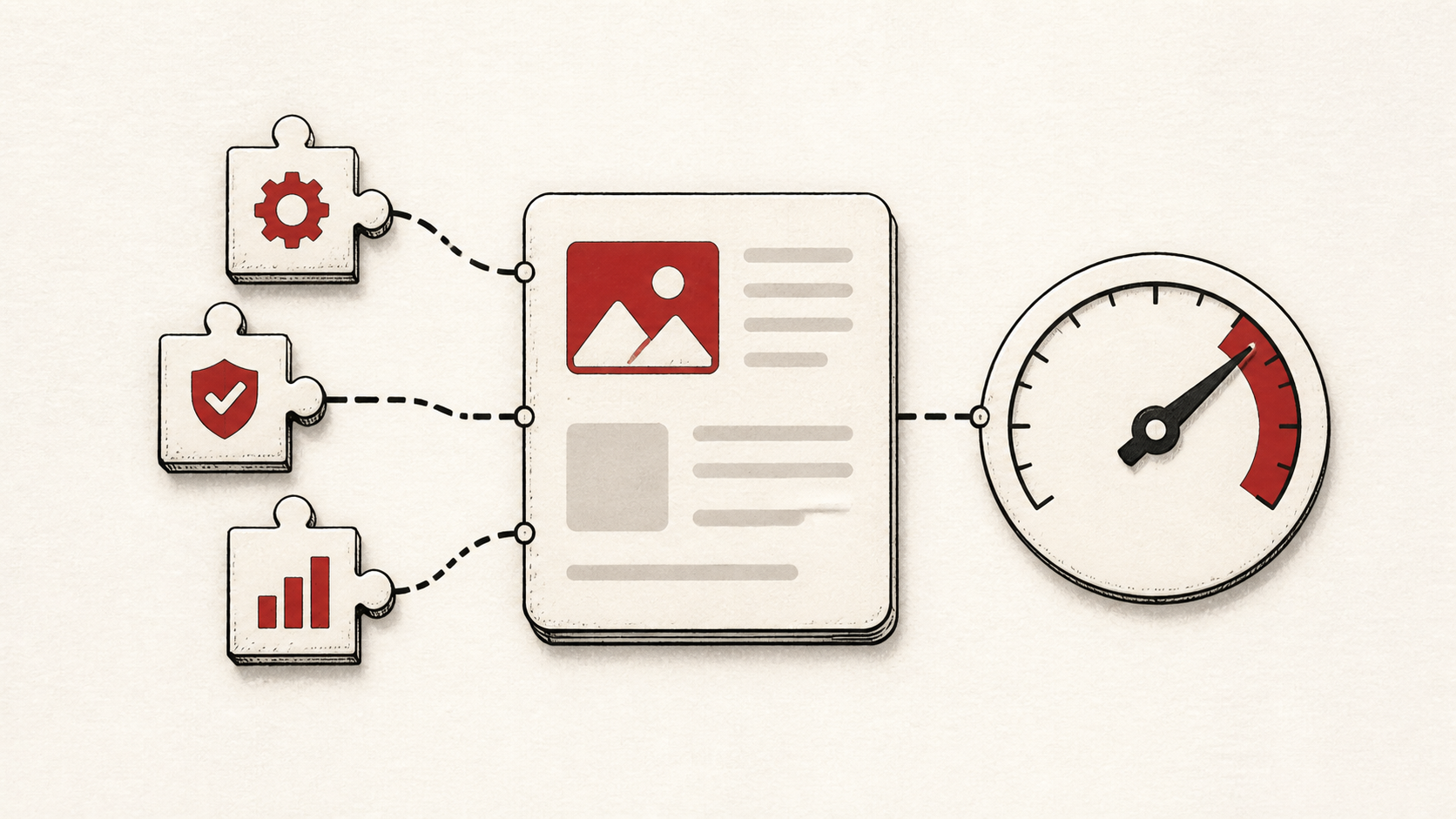
When WordPress plugins slow your site down, the culprit is rarely how many you have — it is the one plugin doing expensive work on every page load. A tidy site with thirty quiet plugins can outrun a site with eight heavy ones. This guide shows how to find the slow plugin with evidence instead of deleting things alphabetically.
This guide focuses on the checks a small-site owner can make safely, and points out where a host or developer should take over. Read how to choose a web host if you are still picking a provider, and how to migrate hosting without downtime before changing live infrastructure.
Inventory the plugins before blaming them
Take a backup, then list every active plugin and what it does on the front end. Analytics, security scanners, page builders, and related-post plugins run on every request; a contact form only works on one page. The every-request group is where WordPress plugin performance problems usually live.
Make a short note of the list, the site's current load time on a normal page, and the date. That baseline is what makes every later test meaningful.
How WordPress plugins slow a site down
Plugins cost you in three places: PHP work on the server, database queries, and scripts shipped to the browser. A slow site can be any of the three, so measure before deactivating. Deactivate one plugin at a time on a staging copy and retest the same page — the plugin whose absence changes the number is your answer.
Use a private browser window for each test. Caching can serve you a page built before the change, which makes an innocent plugin look guilty or a guilty one look innocent.
Test the result like a visitor
Measure a real page a visitor lands on, not the admin dashboard. The admin can feel slow while the cached public site is fine, and the reverse.
Test the normal path first, then the part with the most consequence. For a store, that is checkout — often the least cached, most plugin-heavy page on the site. A test should answer one question rather than produce a vague impression.
When to stop and ask for help
Stop when the numbers say the slowness survives with plugins ruled out — then the problem is hosting, the theme, or the database, and it is worth reading our database performance primer before buying a bigger plan. Send support your baseline, the tests you ran, and the times in UTC.
The hosting side has minimums too: WordPress's server requirements lists the PHP and database versions current WordPress expects, and an old PHP version slows every plugin at once. Check it, then return to the small, reversible next step.
A sensible maintenance habit
Review the plugin list quarterly and remove what you no longer use. Too many plugins is a maintenance problem before it is a speed problem — every one is an update to apply, a conflict waiting, and an attack surface. A dated note of what you removed and why turns the next audit into a lookup instead of an investigation.
Keep the change auditable
Keep a short before-and-after record for each test: the plugin, the page measured, the number before, the number after. This record is useful even when nothing changes — it clears suspects, and a few months later it tells you why a plugin was replaced.
Do not confuse a fast dashboard with a fast site. Visitors hit uncached pages, distant countries, and slow phones. Test from outside the account, and use a second device if a cached answer could mislead you.
If you hand the investigation to someone else, give them the numbers rather than a conclusion. "The site is slow" is hard to investigate. "This page gained a second after this plugin's update, measured in a private window" gives the next person a useful starting point.
One last check
Before closing the investigation, retest the same page you measured at the start, with the same method. WordPress performance work only counts when the number that was bad is now good — a different page or a warmed cache proves nothing.
Leave a useful handoff
Save the final plugin list and the measurements with the date. The next time WordPress plugins slow the site down, whoever investigates starts from your baseline instead of guessing what changed.
Bottom line
WordPress plugins slow your site when one of them does heavy work on every request, not because the count crossed some threshold. Measure a real page, change one plugin at a time, and keep the plugins that earn their cost.
Frequently asked questions
Should I deactivate all my plugins at once to find the slow one?
No. Deactivate one at a time — on staging if the site takes money — and retest between each. Keep each plugin's previous state until you know the result is stable.
Do inactive plugins slow down a site?
Not the pages — a deactivated plugin's code never runs on a request, so it costs no load time. It still counts against you in other ways: it needs updates, it can carry a known vulnerability, and its files and database tables sit in every backup. Delete anything you are not genuinely planning to reactivate.
What information should I give hosting support?
Give the domain, the slow URL, UTC times, your before-and-after measurements, and the steps already tried. That is usually enough for support to find the relevant logs.
Should I keep a backup before removing plugins?
Yes. Verify a recent backup first — some plugins delete their data on uninstall, and the backup is the only way to get it back.
About the author
Matthew Zhao
Matthew has spent his career running production server fleets — tens of thousands of machines' worth. He writes about hosting the way he wishes someone had explained it to him: plainly.
About Hosted EZ →Get the next guide in your inbox
One email when we publish something worth your time. No spam, unsubscribe whenever.