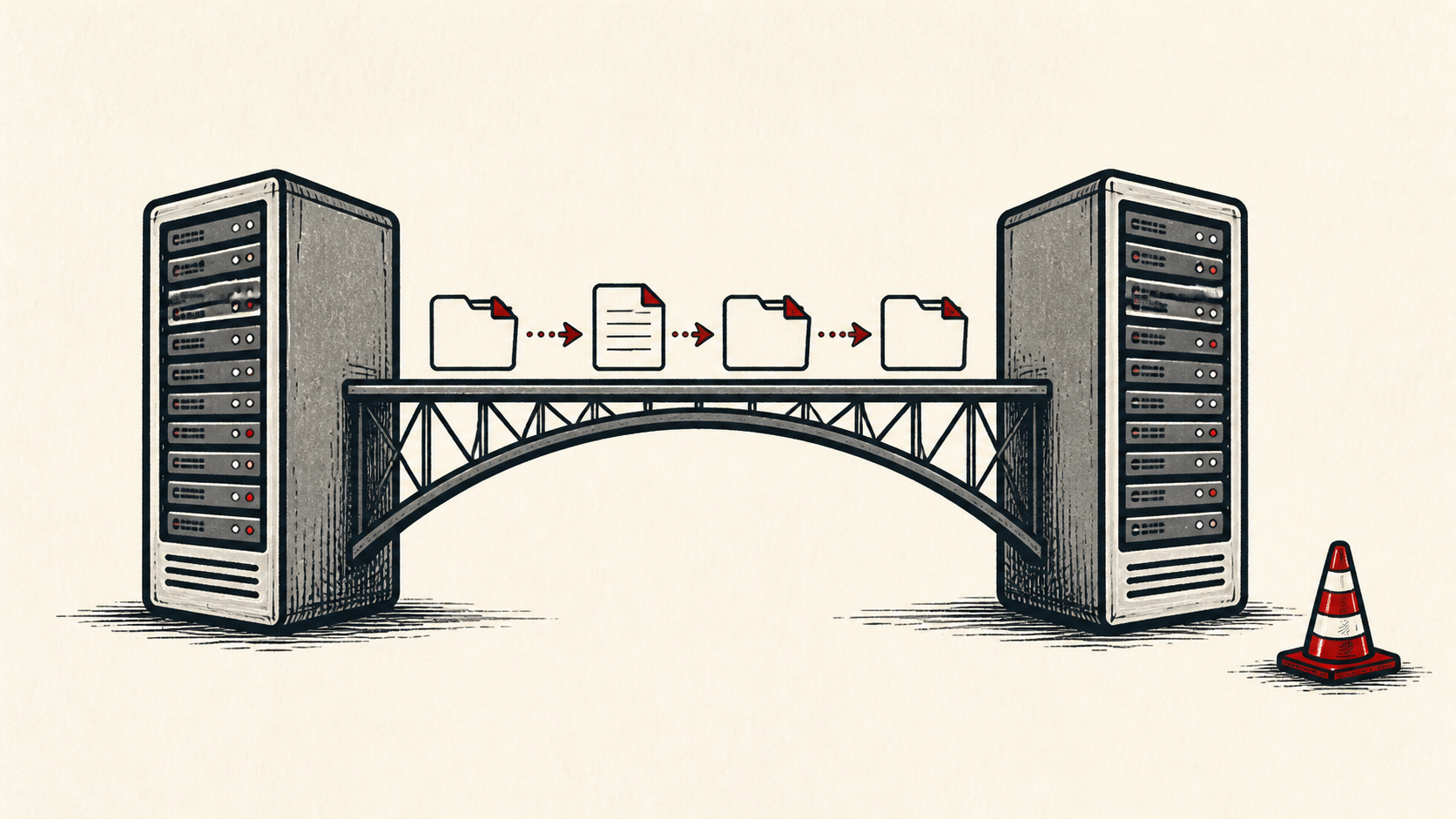
How to Connect a Domain to Your Hosting (A, CNAME, and Nameservers Explained)
Connect a domain to hosting in four steps: which A record or CNAME to change, how to verify with dig, and when to switch nameservers instead.
By Matthew Zhao · Editor, Hosted EZ
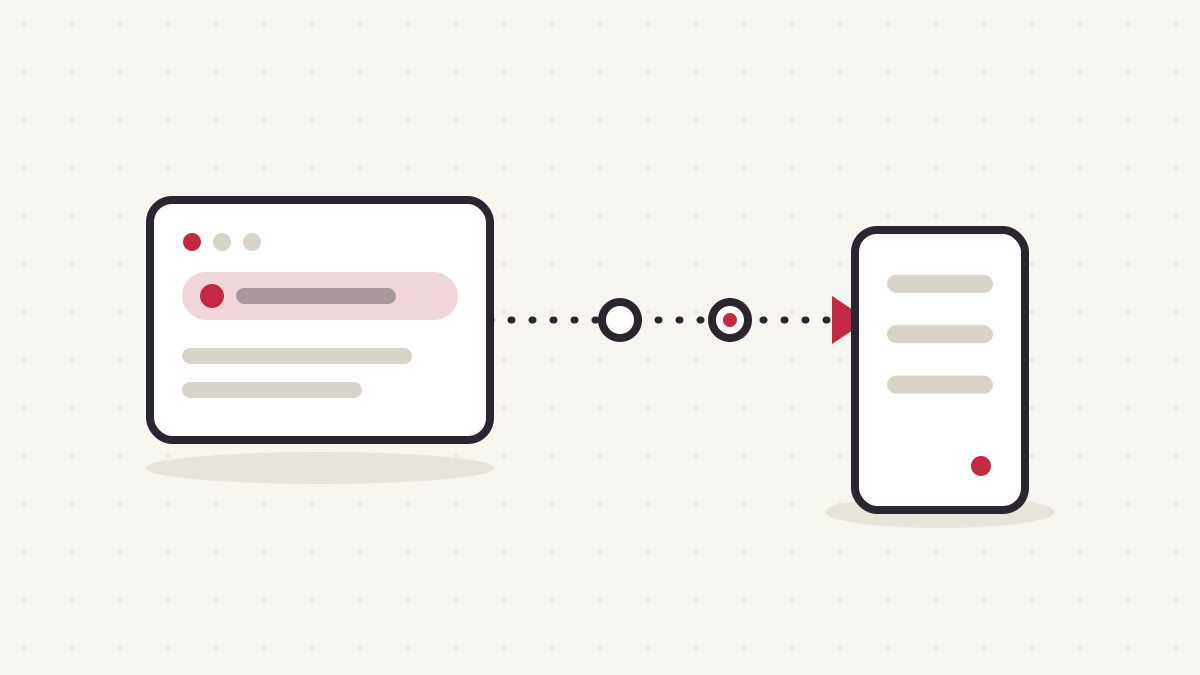
You bought a domain. You signed up for hosting. Now you have two dashboards, three acronyms, and a vague warning that changes "may take up to 48 hours." Take a breath. Connecting a domain to your hosting is a ten-minute job once you know which knob to turn.
The whole system runs on DNS, the internet's contacts app. You know your friend's name, not their phone number; your phone looks the number up for you. DNS does the same thing for domains: someone types yourdomain.com, DNS looks up the server's IP address, and the browser dials it. Connecting your domain just means adding the right entry to that contacts app.
The rest of this guide covers who controls what, which records to change, how to prove the change worked, and the mistakes that trip up nearly everyone once. Still shopping for the hosting side? Start with our guide on how to choose a web host and come back.
The three moving parts
Three separate jobs are involved, possibly done by three separate companies.
Your registrar is where you bought the domain. It holds your registration with the global domain system overseen by ICANN, and it decides which nameservers your domain uses. That second part is the one that matters here.
Your DNS provider runs those nameservers, the servers that actually answer lookups. That's your registrar by default, but it can be anyone: Cloudflare, your host, a standalone DNS service.
Your host is the company with the server your website lives on. Its only role in this story is handing you a value (an IP address or a hostname) that you'll paste into your DNS records.
When in doubt, ask one question: who runs my nameservers? That's where you make changes.
DNS records in plain English
A DNS zone is just a list of entries. Each record has a type, a name (the part before your domain, where @ means the bare domain itself), and a value. Here are the five you'll actually meet:
| Record | What it does | Example value |
|---|---|---|
| A | Points a name at an IPv4 address | 203.0.113.10 |
| AAAA | Points a name at an IPv6 address | 2001:db8::1 |
| CNAME | Points a name at another name (an alias) | yoursite.hostplatform.net |
| MX | Routes your email to a mail server | mail.protonmail.ch (priority 10) |
| TXT | Holds text for verification and email rules | v=spf1 include:_spf.google.com ~all |
Two rules of thumb. If your host gives you a number, you want an A record (or AAAA for IPv6). If it gives you a name ending in something like .pages.dev or .netlify.app, you want a CNAME. One caveat: the plain DNS standard doesn't allow a CNAME on the apex (@). Most modern DNS providers work around this with flattened CNAME, ALIAS, or ANAME records, which behave the same way. Cloudflare's Learning Center has a deeper dive if you want the theory.
Two ways to connect a domain to hosting
There are two ways to point a domain at your hosting, and picking the wrong one causes most of the pain.
Option one: change individual records. Keep your nameservers where they are and just add or edit the A record or CNAME your host asks for. This is the surgical option. Nothing else about your domain changes: email keeps flowing, other subdomains keep working. Choose this when your DNS setup already works and you only want the website to move.
Option two: change nameservers. Point your domain's nameservers at your host (or at a DNS service like Cloudflare), handing over the entire zone. Choose this when your host requires it or you want its CDN and management features. It also makes sense when you're starting fresh with no records worth keeping.
The trade-off is scope: changing records moves one thing; changing nameservers moves everything, including records you forgot exist. If you have working email on the domain, that matters. More on that below.
The walkthrough
This is the record-editing path from option one, start to finish.
-
Find the value your host gives you. Look for a section called "custom domains," "domains," or "DNS setup" in your hosting dashboard. Add your domain there first if the host asks, then copy the IP address or target hostname it displays. That page usually tells you exactly which record type to create.
-
Open your DNS manager. Go to wherever your nameservers live, usually your registrar's dashboard, under a name like "DNS," "DNS Management," or "Zone Editor." If you're not sure who runs your DNS, a quick
dig NS yourdomain.comwill tell you. -
Add or edit the records for
@andwww. Create an A record with name@pointing at the host's IP, or the CNAME record your host specified. Then handlewww, typically a CNAME with namewwwpointing at either your bare domain or the host's target. If old A records for@orwwwalready exist and point somewhere else, edit or delete them rather than adding duplicates. -
Wait for propagation. Every record has a TTL (time to live), which sets how long resolvers around the world are allowed to cache the old answer before asking again. The "up to 48 hours" warning is the legal-department version of this; it's only realistic for nameserver changes with long TTLs. For ordinary record edits, most visitors see the new answer within minutes to an hour.
That really is the whole job. If you're moving an existing live site rather than launching a new one, sequence matters more: lower your TTLs in advance and follow our guide to migrating hosting without downtime.
Check that it worked
Don't refresh your browser and guess. Ask DNS directly:
dig +short yourdomain.com A
# or, on Windows:
nslookup yourdomain.com
If the output shows your host's IP, the record is live. If you see the old value, your local resolver is still caching. Query a public resolver directly (dig +short yourdomain.com @1.1.1.1) to see the fresh answer. Online checkers like whatsmydns.net query resolvers worldwide so you can watch the change roll out.
One nuance: if your DNS provider proxies traffic (Cloudflare's orange cloud is the famous example), dig will return the proxy's IP, not your host's. That's expected. The proxy is answering for you.
Don't forget HTTPS
Your site is done when the padlock shows up, not when DNS resolves. Most hosts issue a free certificate automatically via Let's Encrypt, but they can only do it after your domain points at them, because issuance requires proving control of the name.
So expect a short gap between DNS resolving and HTTPS working, often under a minute and occasionally longer. If your host has a "retry" or "provision certificate" button, press it once DNS checks out. A certificate error right after a DNS change is almost never a real problem; it's a queue.
Common mistakes
Fixing @ but not www (or vice versa). These are separate records, so yourdomain.com can load your new site while www.yourdomain.com still points at the old one. Set both, and let your host redirect one to the other.
Leaving old records behind. Two A records for the same name means resolvers will rotate between them, and half your visitors land on the old server. Delete stale records; don't just add new ones.
Changing nameservers and losing your email. New nameservers mean a blank zone unless you copy your records over. Forget the MX and TXT records and your email silently stops. Before any nameserver change, screenshot or export your full record list, and recreate MX, TXT, and any custom subdomains at the new provider first.
Proxy and CDN confusion. If your DNS sits behind a proxy, tools show the proxy's IP and some host verification checks fail. When a host says it can't verify your domain, try turning the proxy off (grey-cloud the record), verifying, then turning it back on.
Keep the change auditable
Use a short before-and-after record. Write the setting you found, its old value, the exact time you changed it, and the result of the test. If the change has a delay, such as a DNS TTL or a cache expiry, write the time you expect the new answer to be visible. This record is useful even when everything works. A few months later, it tells you why a setting has an unusual value.
Do not confuse an account dashboard with evidence from the live site. A dashboard can show that it accepted a record or a deployment. The visitor still needs to receive the page, email, redirect, or certificate you intended. Test from outside the account, and use a second connection if a cached answer could mislead you.
If you hand the task to someone else, give them the record rather than a conclusion. "The site is slow" is hard to investigate. "The delay began after this update, affects this URL, and persists in a private window" gives the next person a useful starting point.
One last check
Before you close the ticket or move to the next task, repeat the action that prompted the change. Use the ordinary path a visitor or colleague would use, not only the account dashboard. If the result is different, note the difference and keep troubleshooting from that point. A quiet confirmation now is much easier than discovering the missed detail during a launch or an outage.
Bottom line
Connecting a domain to your hosting is one record change in the right dashboard: an A record or CNAME for @ and www, pointed at whatever your host tells you. Change individual records when your setup works; change nameservers only when you mean to hand over the whole zone. Verify with dig, wait out the TTL, and let your host issue the certificate.
Frequently asked questions
Do I have to buy my domain and hosting from the same company?
No, and there are good reasons not to. Keeping them separate makes it painless to switch hosts later without touching your domain. Bundling is a convenience, not a requirement, and rarely the cheapest path; see our breakdown of website hosting costs.
How long does DNS propagation really take?
An edited A record or CNAME usually takes minutes, bounded by the record's TTL (often 300 to 3,600 seconds). Nameserver changes are slower because the delegation itself is cached, sometimes for a day or two. The 48-hour figure is a worst case, not a forecast.
What's the difference between an A record and a CNAME?
An A record points a name at an IP address; a CNAME points a name at another name, which then gets resolved in turn. Use whichever your host hands you. CNAMEs are handy when the host's IP might change, because the host updates its end and you touch nothing.
My site loads but shows "not secure." Did I break something?
Almost certainly not. Hosts issue HTTPS certificates after DNS points at them, so there's a short window where the site resolves but the certificate isn't ready. Wait a few minutes, trigger reissuance from your hosting dashboard, and it will sort itself out.
About the author
Matthew Zhao
Matthew has spent his career running production server fleets — tens of thousands of machines' worth. He writes about hosting the way he wishes someone had explained it to him: plainly.
About Hosted EZ →Get the next guide in your inbox
One email when we publish something worth your time. No spam, unsubscribe whenever.