Build an Ecommerce Backup Plan
An ecommerce backup plan covers the database and files separately. How to apply the 3-2-1 rule to a store and prove restores work.
By Matthew Zhao · Editor, Hosted EZ

An ecommerce backup has a harder job than a blog backup, because orders arrive around the clock and yesterday's copy already means missing data. The plan is not complicated: know what to copy, copy the database more often than the files, keep one copy off the hosting account, and prove you can restore. This guide walks through each piece for a small store.
This guide focuses on the steps a store owner can take safely. It also points out where a host, platform, or developer needs to take over. Read how to choose a web host if you need the broader setup, and our guide to migrating without downtime before changing live infrastructure.
List what an ecommerce backup must cover
Start from the routes that make money: product pages, cart, login, checkout, payment callbacks, and order email. Whatever those routes depend on is what the backup must cover. For most stores that means the database (orders, customers, inventory) and the files (theme, extensions, product images), plus the configuration that ties them to your payment provider.
Make a short note of where each piece lives and which account can reach it. Do not put passwords or recovery codes in the note.
Back up the database on its own schedule
The files change when you redesign; the database changes with every order, so a database backup needs a schedule that matches your order volume. Daily is a floor for an active store in 2026, and hourly is not extravagant during a busy season.
Take a fresh copy before you change extensions, payment settings, or caching rules, and use a staging copy for the risky work. Test a realistic order with a safe payment method if your platform provides one.
Follow the 3-2-1 backup rule, then restore something
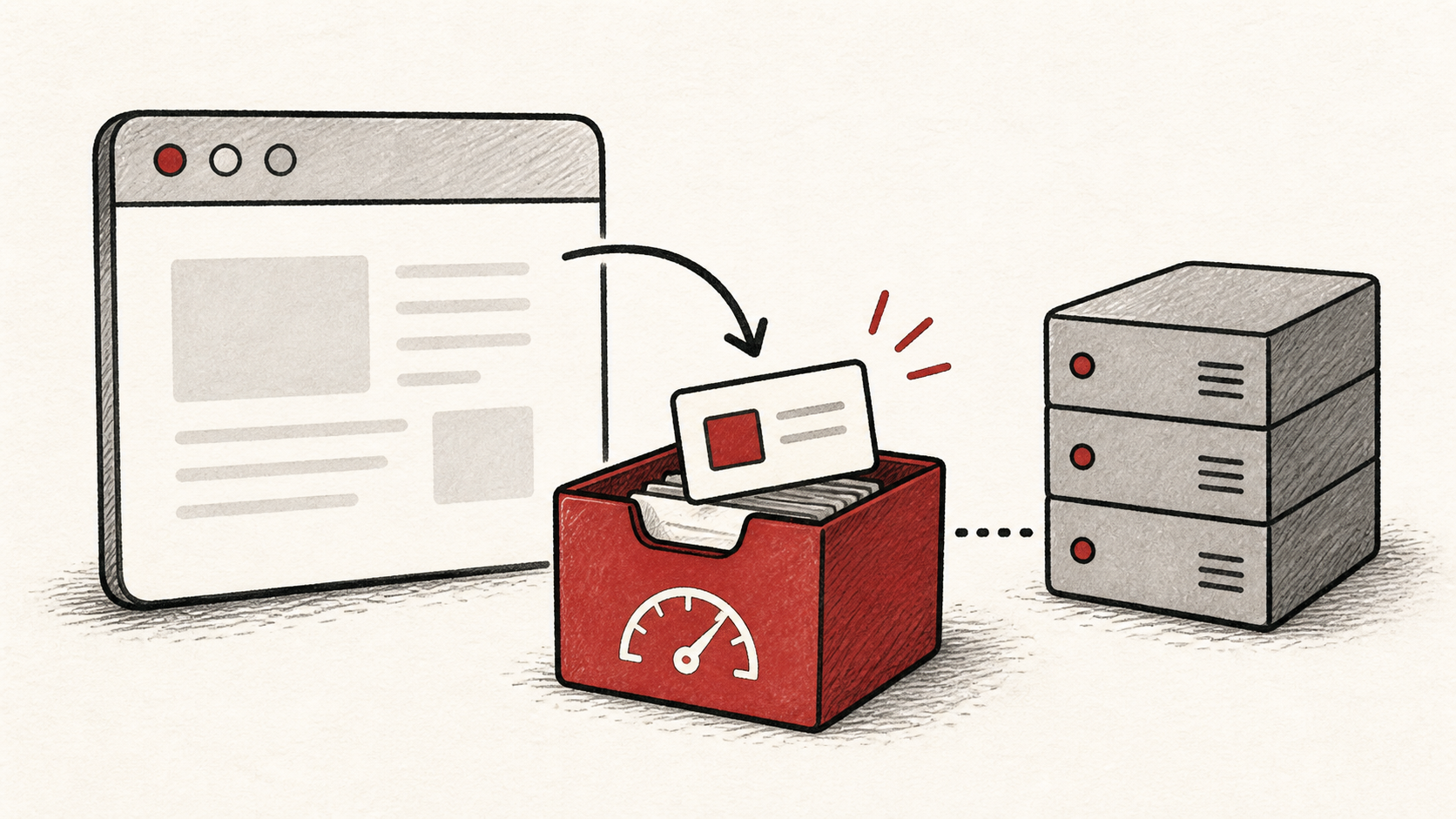
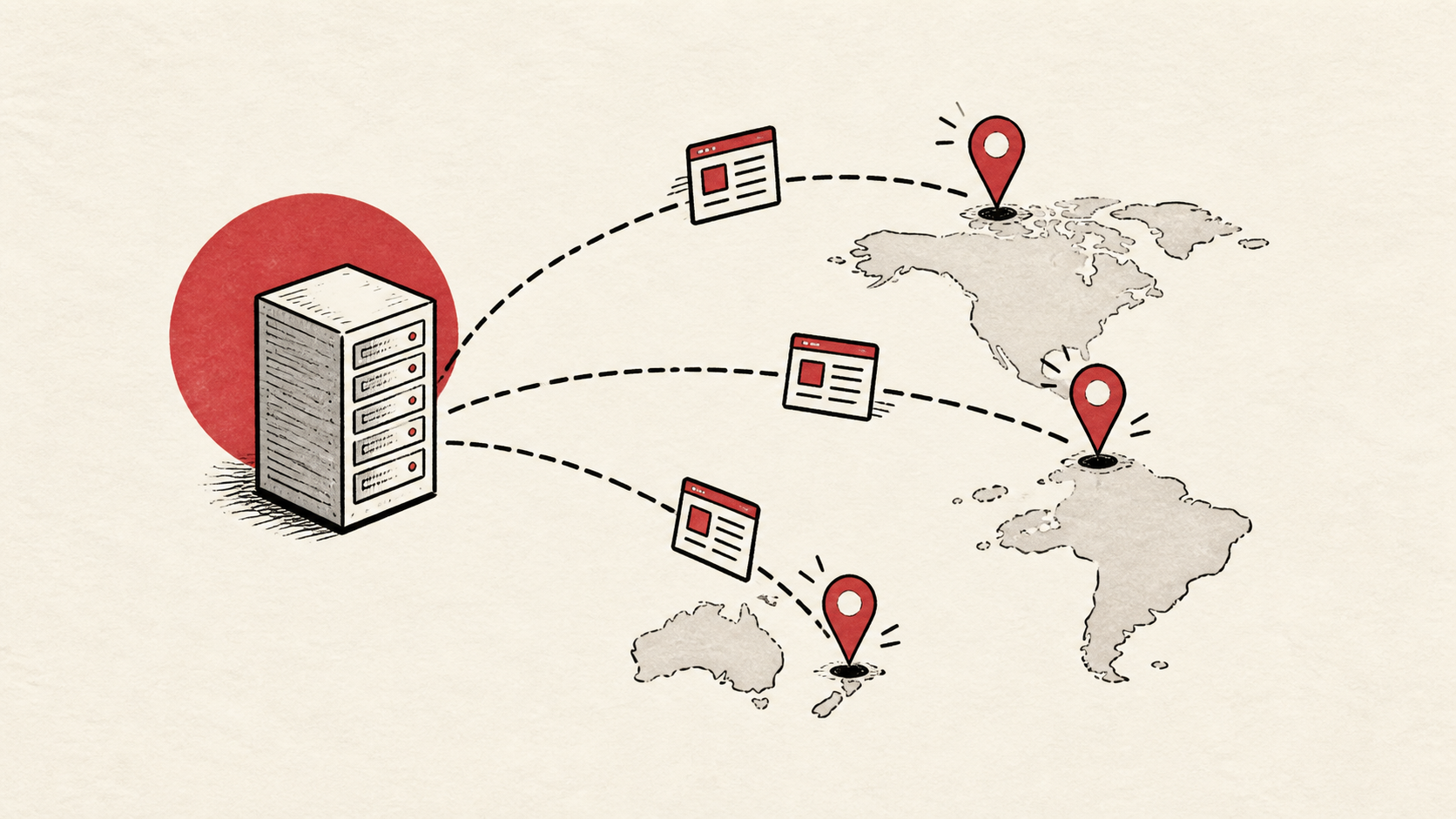
The 3-2-1 backup rule is the standard for a reason: three copies of your data, on two kinds of storage, with one copy away from the hosting account. A website backup that lives only on the server it protects disappears with that server.
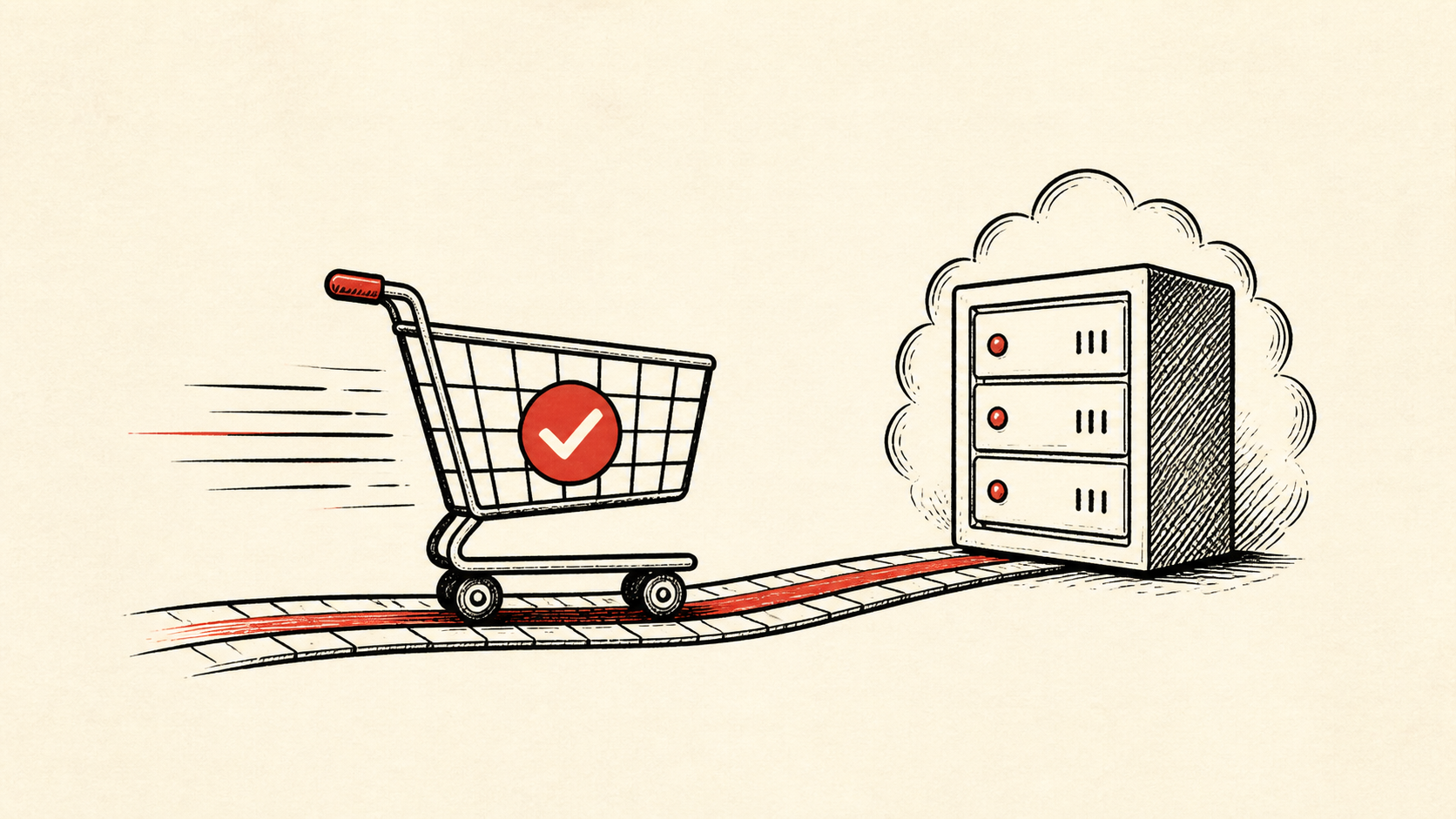
Before a campaign or sale, confirm the schedule ran, confirm who can restore, and then restore something small to staging. Test the normal path first, then checkout, because a store can look healthy everywhere except the one page that matters.
When to stop and ask for help
Stop when the next action could overwrite live orders or touch payment configuration. Send support the domain, time in UTC, exact error, and the changes you made. Include a screenshot when it shows the error, but never card numbers or API keys.
Card data itself should not be sitting in your backups at all; your payment provider holds it. PCI Security Standards Council guidance covers what stores are responsible for: PCI Security Standards Council guidance. Use it to understand the terms, then return to the small, reversible next step.
A sensible maintenance habit
Put the backup schedule, storage locations, and the date of the last successful restore in a short maintenance note. Backup problems surface months later, when nobody remembers which job covers which directory. A dated note turns that discovery into a lookup instead of an investigation.
Keep the change auditable
Use a short before-and-after record. Write the setting you found, its old value, the exact time you changed it, and the result of the test. For backups, add the run time and size of the latest copy; a job that silently shrinks to nothing is a common failure. This record is useful even when everything works.
Do not confuse an account dashboard with evidence. A dashboard can show a green checkmark for a backup nobody can restore. The proof is a file you have opened and a restore you have performed. Test from outside the account where you can.
If you hand the task to someone else, give them the record rather than a conclusion. "The backups are fine" is hard to trust. "The nightly database backup ran at this time, is this size, and restored cleanly to staging on this date" gives the next person a useful starting point.
One last check
Before you close the task, place a test order on the restored staging copy, or at least load its checkout. If the result is different from production, note the difference and keep troubleshooting from that point. A quiet confirmation now is much easier than learning the gap during an outage in the middle of a sale.
Leave a useful handoff
Save the final restore-test result with the date and account involved. If someone else needs to run the ecommerce backup plan during an incident, they should find the steps written down, not reconstruct them from browser history.
Bottom line
An ecommerce backup plan is a schedule that matches your order volume, copies in three places, and a restore you have performed at least once. Protect the database first, keep one copy off the account, and test checkout after every restore.
Frequently asked questions
Should I change my backup setup all at once?
No. Change one job or setting, test it, and keep the previous configuration until you know the result is stable.
What should I give hosting support when a backup or restore fails?
Give the domain, the job or file involved, UTC time, error text, and steps already tried. That is usually enough for support to find the relevant logs.
Should I take a website backup before changing store settings?
Yes. Download or verify a recent copy before edits that affect files, the database, email, DNS, or software versions.
About the author
Matthew Zhao
Matthew has spent his career running production server fleets — tens of thousands of machines' worth. He writes about hosting the way he wishes someone had explained it to him: plainly.
About Hosted EZ →Get the next guide in your inbox
One email when we publish something worth your time. No spam, unsubscribe whenever.