Why Every Ecommerce Store Needs a Staging Site
A staging site lets you test changes safely before customers see them. How to set one up for an ecommerce store and what to check before going live.
By Matthew Zhao · Editor, Hosted EZ
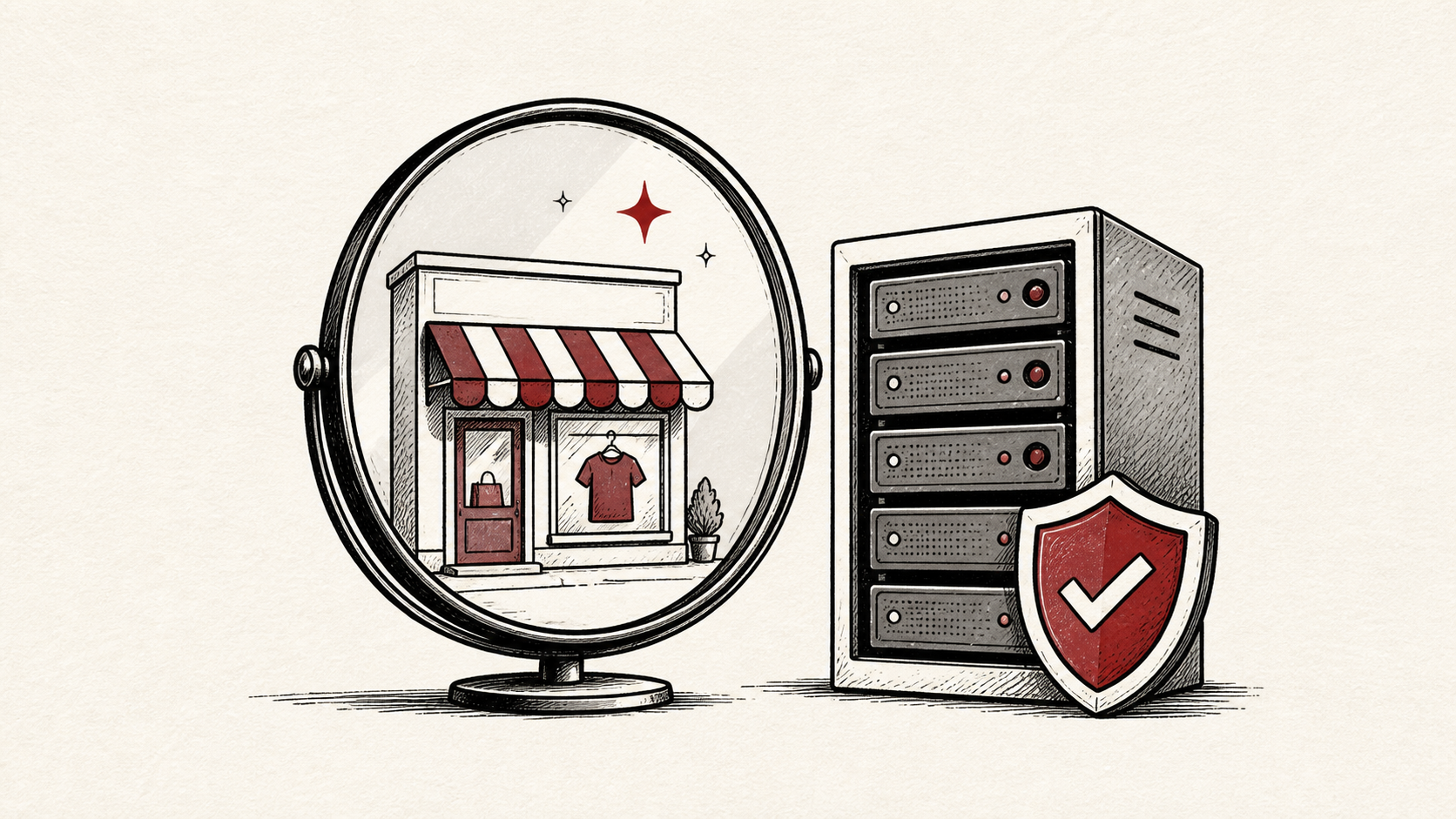
A staging site is a private copy of your store where you can test changes safely before customers ever see them. Update a payment extension on the live site and you discover problems at checkout, in public; update it on staging first and you discover them alone. This guide explains how to set one up for an ecommerce store and what to test on it.
It focuses on the checks a small-store owner can make safely, and points out where a host or developer should take over. Read how to choose a web host if your current plan offers no staging feature, and our migration guide before changing live infrastructure.
What an ecommerce staging site protects
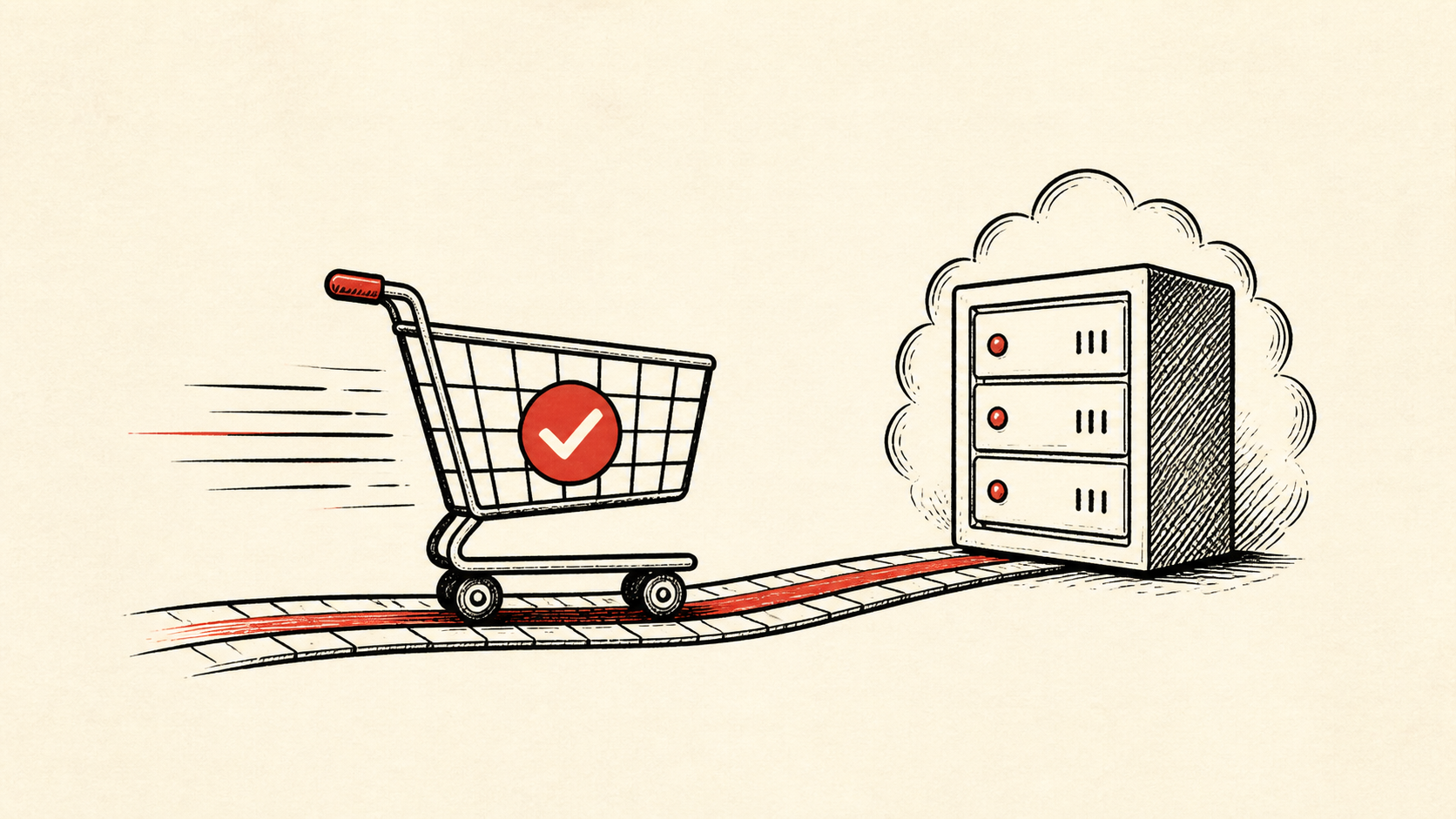
Protect the routes that make money: product pages, cart, login, checkout, payment callbacks, and order email. A store can have a fast homepage and still lose a sale at the one page that matters. An ecommerce staging site exists so those routes never meet an untested change.
Make a short note of the account names, domain names, and platform versions involved before you clone anything. Do not put passwords or recovery codes in the note.
Set up the staging environment
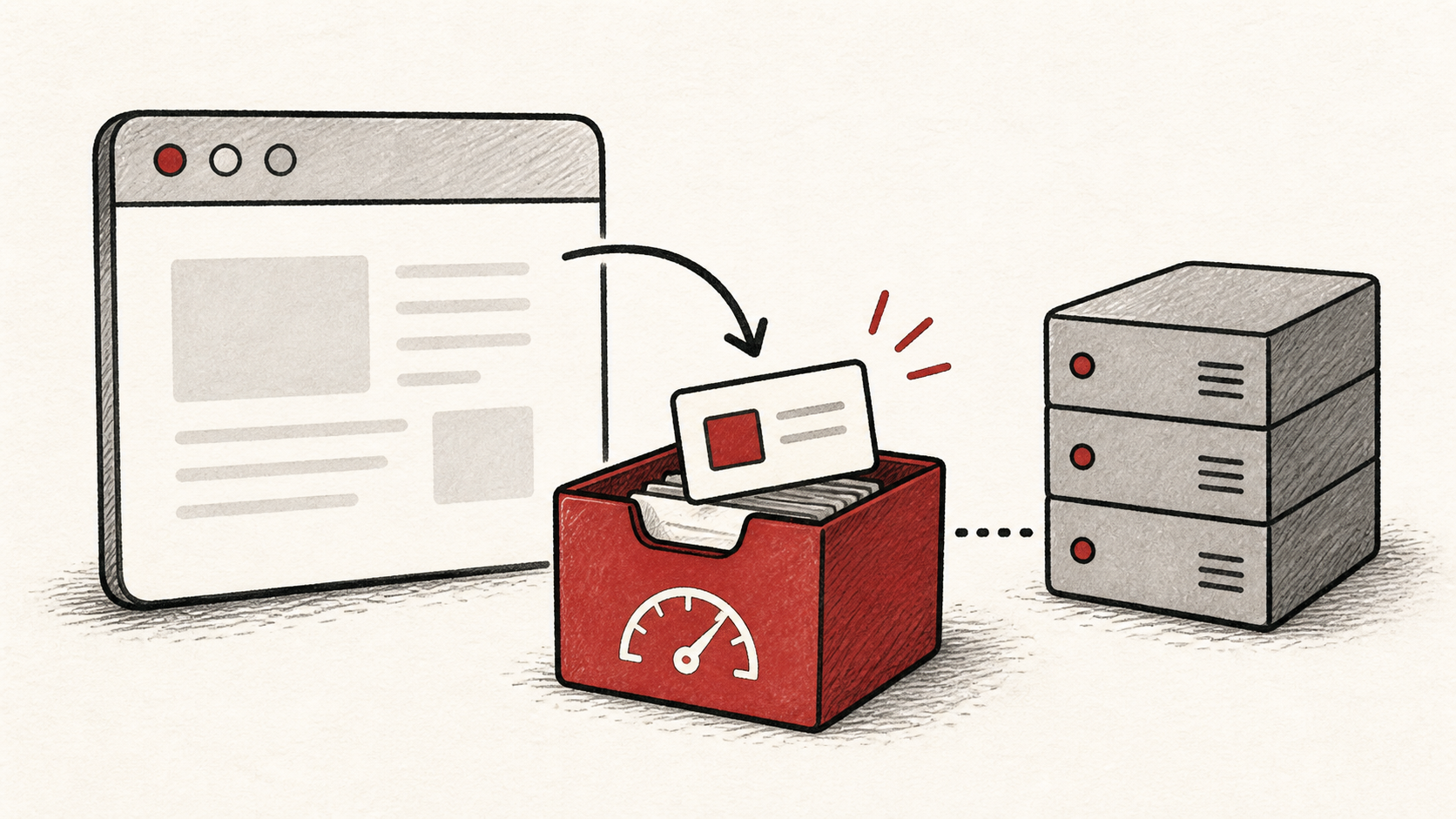
Most hosts can clone a site into staging from the control panel; if yours cannot, a manual copy of the files and database does the same job. Build it from a recent backup so it matches production, and keep it private — password-protect it and block search engines from indexing it.
Two details matter more for a store than for an ordinary site. First, disable outgoing email on the clone — a copied store that can still send mail will email real customers about test orders and password resets. Second, decide what happens to customer data in the copy: if privacy rules or your own policy restrict where personal data lives, anonymize the cloned order records rather than carrying them into a test environment.
If your store runs on WordPress, our WordPress staging site guide covers the plugin and host options in more detail.
Test changes safely, one at a time
Change one thing on staging, test it, then move to the next. Test a realistic order with a safe payment method — most payment providers offer a sandbox mode for exactly this. A sandbox order never charges a card, but it still exercises the same checkout code, tax rules, and confirmation email your customers rely on.
Test the normal path first, then the part with the most consequence — for a store, that is checkout. Use a private browser window after each change so cookies and cached redirects do not mislead you.
When to stop and ask for help
Stop when the next action could overwrite order data, change production mail, or remove your access to the account. Send support the domain, time in UTC, exact error, and the changes you made. Include a screenshot when it shows the error, but never full payment details.
PCI Security Standards Council guidance has useful background on the payment-security standards that make careful testing worthwhile. Use it to understand the terms, then return to the small, reversible next step.
A sensible maintenance habit
Keep a short note of what was tested on staging and when it went live. Store problems repeat because nobody remembers which plugin was updated last time. A dated note turns the next incident into a lookup instead of an investigation.
Keep the change auditable
Use a short before-and-after record. Write the change you staged, the time you deployed it to the live store, and the result of the test that followed. A few months later, it tells you why a setting has an unusual value.
Do not confuse the staging result with evidence from the live site. Staging can differ from production in caching, extensions, and payment configuration. The customer still needs to receive the page and the order email you intended, so test production after every deploy.
One last check
After deploying a staged change, repeat the test on the live store the way a customer would, not only in the admin dashboard. Staging reduces risk; it does not remove the need to verify production. If the result differs, note the difference and keep troubleshooting from that point.
Leave a useful handoff
Save the final test result with the date and account involved. If someone else needs to revisit the work, they should see what changed and where it was tested without reconstructing the incident from browser history.
Bottom line
A staging site turns risky store changes into boring ones: clone the store, test each change on the copy, then deploy and verify on production. Keep evidence, protect your backups, and ask support before a safe step turns into a data-loss risk.
Frequently asked questions
Should I push all my changes to the live store at once?
No. Deploy one tested change, verify it, and keep the previous value until you know the result is stable.
What information should I give hosting support?
Give the domain, exact URL or service, UTC time, error text, and steps already tried. That is usually enough for support to find the relevant logs.
Do I still need backups if I use a staging environment?
Yes. Download or verify a recent backup before edits that affect files, databases, email, DNS, or software versions. Staging catches mistakes; backups undo them.
How often should I refresh the staging copy?
Rebuild it from a fresh backup before each round of testing. A copy cloned months ago drifts away from production — different plugin versions, different data — and a test that passes on stale staging can still fail on the live store.
About the author
Matthew Zhao
Matthew has spent his career running production server fleets — tens of thousands of machines' worth. He writes about hosting the way he wishes someone had explained it to him: plainly.
About Hosted EZ →Get the next guide in your inbox
One email when we publish something worth your time. No spam, unsubscribe whenever.