How to Diagnose a 500 Internal Server Error
A 500 internal server error means the server failed, not your browser. Where to find the server error log and how to fix the error step by step.
By Matthew Zhao · Editor, Hosted EZ
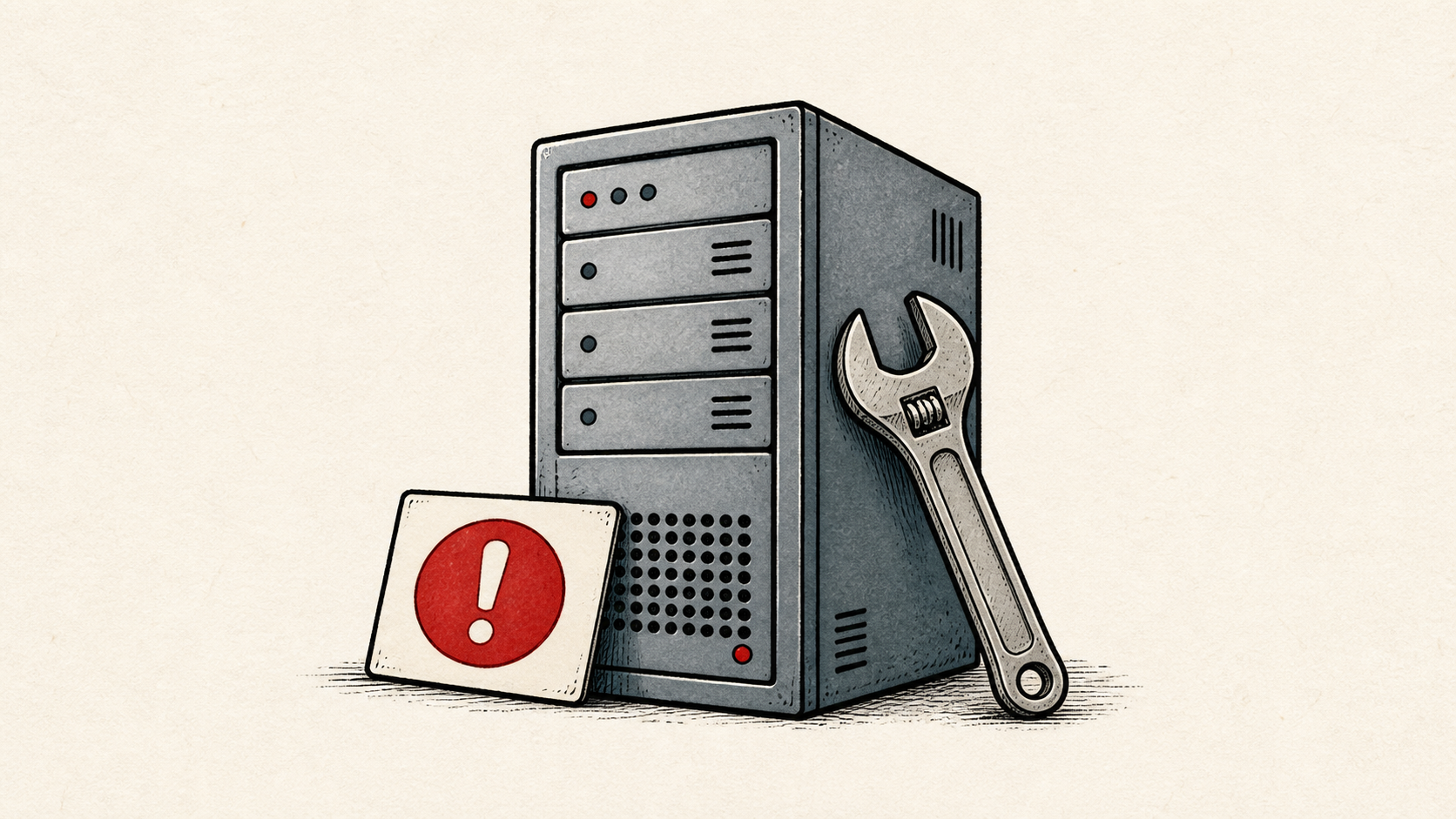
A 500 internal server error means the server hit a problem it could not recover from — the request was fine; the code or configuration behind it was not. That makes it different from a connection error: the fix is on the server, and the evidence is in the server error log. This guide walks through diagnosing the error without making it worse.
It focuses on the checks a small-site owner can make safely, and points out where a host or developer needs to take over. Read how to choose a web host if outages keep recurring, and our migration guide before changing live infrastructure.
What a 500 internal server error means
HTTP 500 is the server's generic failure code: something threw an error while building the response. Start by recording the exact status code, URL, time, and whether the issue affects everyone or only logged-in visitors. Those details narrow a support ticket much faster than a description such as 'the site is broken.'
If the whole domain is unreachable rather than returning an error page, that is a different problem — start with our website-down walkthrough instead.
Read the server error log first
The log records what actually failed: the file, the line, the exhausted limit. Find it in your control panel's logs section or in an error_log file in the site directory; on WordPress, the WordPress error log adds application-level detail.
Check recent changes, resource usage, and the log before restoring random files. A timeout, a full disk, a bad plugin update, and a broken .htaccess line can all produce the same HTTP 500 in a browser.
Fix the 500 error one change at a time
Make the smallest safe correction, then test again from a fresh browser session. If it does not change the symptom, revert it and move to the next theory. Keeping that discipline prevents a second problem from hiding the first.
The usual suspects, in order: a plugin or extension updated recently, a corrupted .htaccess rule, a PHP version change, and exhausted memory or disk. Undo the most recent change first — most 500s follow an edit somebody made.
A worked example: if the log shows an allowed-memory-exhausted line, raise the PHP memory limit in your control panel by one step and retest, rather than jumping straight to the maximum. If the log names a plugin file, rename that plugin's folder over SFTP to disable it, reload the page, and restore the folder once you have a proper fix. If the log points at .htaccess, rename the file to .htaccess.bak and reload — a page that recovers tells you the problem is one of the rewrite rules inside it, and you can restore them a few lines at a time to find the culprit.
When to stop and ask for help
Stop when the next action could overwrite data, change production mail, or remove access to the account. Send support the domain, time in UTC, the exact error line from the log, and the changes you made. Include a screenshot when it shows the error, but do not include private keys or passwords.
MDN's HTTP status reference has useful background on what each status code means. Use it to understand the terms, then return to the small, reversible next step.
A sensible maintenance habit
Put the cause and the fix in a short maintenance note. 500s repeat because nobody remembers which plugin was disabled last time. A dated note turns the next incident into a lookup instead of an investigation.
Keep the change auditable
Use a short before-and-after record. Write the setting or file you touched, its old value, the exact time, and the result of the test. A few months later, it tells you why a setting has an unusual value.
Do not confuse an account dashboard with evidence from the live site. A dashboard can show a deployment as healthy while visitors still get HTTP 500. Test from outside the account, in a private window, and use a second connection if a cached answer could mislead you.
One last check
Before you close the ticket, load the failing URL the way a visitor would and watch the error log while you do it. A page that renders while the log keeps filling with warnings is a 500 internal server error waiting to come back.
Leave a useful handoff
Save the log excerpt, the fix, and the date with the account involved. The next person facing the same error should start from your note, not from scratch.
Bottom line
A 500 internal server error is the server telling you exactly where to look: the error log. Read the log before changing anything, fix the 500 error with one reversible change at a time, and write down what worked.
Frequently asked questions
Should I try every fix for a 500 error at once?
No. Change one related setting, test it from a fresh session, and keep the previous value until you know the result is stable.
What information should I give hosting support about a 500 error?
Give the domain, exact URL, UTC time, the error log lines, and steps already tried. That is usually enough for support to find the relevant logs.
Should I keep a backup before troubleshooting a 500 internal server error?
Yes. Download or verify a recent backup before edits that affect files, databases, email, DNS, or software versions.
What if the error log is empty after a 500?
Some hosts leave error logging switched off by default. Turn logging on in the control panel, or enable the debug log on WordPress, reproduce the error once, and read the fresh entries. An empty log right after a visible 500 usually means you are reading the wrong file — ask support which path the server actually writes to, because several log locations can exist on one account.
About the author
Matthew Zhao
Matthew has spent his career running production server fleets — tens of thousands of machines' worth. He writes about hosting the way he wishes someone had explained it to him: plainly.
About Hosted EZ →Get the next guide in your inbox
One email when we publish something worth your time. No spam, unsubscribe whenever.